Authentication & Login
Overview
Pidima uses secure authentication to protect your engineering documentation and ensure compliance with regulatory requirements. This guide covers everything you need to know about logging into Pidima and managing your authentication settings.
Accessing Pidima
Login URL
Access Pidima through your organization's dedicated URL:
- Format:
https://[your-organization].pidima.aiorhttps://app.pidima.ai - Bookmark this URL for easy access
- Always verify you're on the correct URL before entering credentials
System Requirements
Before logging in, ensure your system meets these requirements:
- Supported Browsers: Chrome 90+, Firefox 88+, Safari 14+, Edge 90+
- JavaScript: Must be enabled
- Cookies: Must be enabled for session management
- Screen Resolution: Minimum 1366 x 768 recommended
Logging In
Standard Login Process
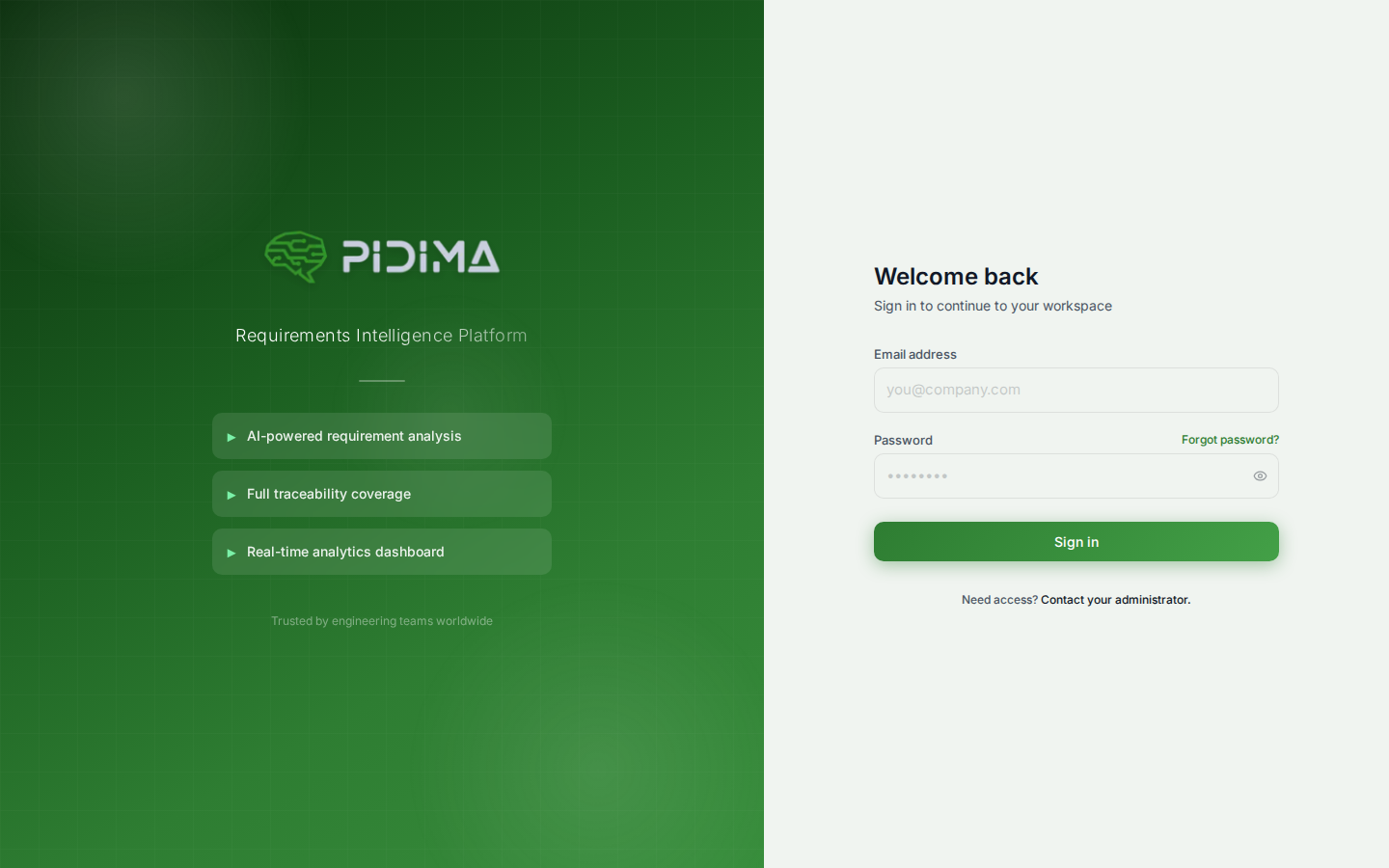
- Navigate to the Login Page
- Open your web browser
- Enter your Pidima URL
- You'll see the login screen with the Pidima logo and welcome message
- Enter Your Credentials
- Email or Username: Enter your registered email address (e.g., andrew@pidima.ai)
- Password: Enter your secure password
- Passwords are case-sensitive
- Optional: Remember Me
- Check "Remember Me" to stay logged in on this device
- Only use this on secure, personal devices
- Session remains active for 30 days with this option
- Click Sign In
- Press the "Sign In" button or hit Enter
- You'll be redirected to the dashboard upon successful login
Login Screen Features
The login screen displays helpful information:
- Coverage Metrics: Shows your organization's current test coverage
- Requirements Status: Displays completion percentage
- Test Cases Status: Shows test case completion
- Visual Feedback: Animated indicators for system status
First-Time Login
Initial Setup
When logging in for the first time:
- Temporary Password
- Your administrator will provide initial credentials
- You'll be prompted to change your password immediately
- Password Requirements
- Minimum 12 characters
- At least one uppercase letter
- At least one lowercase letter
- At least one number
- At least one special character (!@#$%^&*)
- Cannot match previous 5 passwords
- Profile Setup
- Verify your email address
- Set up security questions (if enabled)
- Configure notification preferences
- Review and accept terms of service
Security Setup
During first login, you may be asked to:
- Enable two-factor authentication (recommended)
- Set up backup authentication methods
- Configure security questions
- Add a recovery email address
Password Management
Password Requirements
Pidima enforces strong password policies:
- Length: 12-128 characters
- Complexity: Mixed case, numbers, and special characters
- Uniqueness: Cannot reuse last 5 passwords
- Expiration: Passwords expire every 90 days (configurable)
Changing Your Password
To change your password while logged in:
- Click your profile icon
- Select "Account Settings"
- Navigate to "Security"
- Click "Change Password"
- Enter current password
- Enter and confirm new password
- Click "Update Password"
Password Reset
If you forget your password:
- Click "Forgot Password?" on the login screen
- Enter your email address
- Check your email for a reset link (valid for 5 minutes)
- Click the reset link in the email
- Create a new password following the requirements
- Log in with your new password
📧 Note: Password reset emails come from
no-reply@pidima.ai. Check your spam folder if you don't see it.
Two-Factor Authentication (2FA)
Enabling 2FA
For enhanced security, enable two-factor authentication:
- Navigate to Account Settings → Security
- Click "Enable Two-Factor Authentication"
- Choose your 2FA method:
- Authenticator App (recommended)
- SMS (requires mobile number)
- Email (backup option)
Using an Authenticator App
- Install an authenticator app:
- Google Authenticator
- Microsoft Authenticator
- Authy
- Scan the QR code displayed in Pidima
- Enter the 6-digit code from your app
- Save backup codes securely
Logging in with 2FA
- Enter username and password as usual
- Enter the 6-digit code from your authenticator
- Code refreshes every 30 seconds
- Option to "Trust this device" for 30 days
Single Sign-On (SSO)
Available SSO Options
If your organization has configured SSO:
- SAML 2.0: Industry-standard protocol
- OAuth 2.0: For Google Workspace, Microsoft 365
- Active Directory: For Windows domain integration
SSO Login Process
- Click "Sign in with SSO" on the login page
- Enter your organization identifier (if prompted)
- Redirect to your identity provider
- Authenticate with your corporate credentials
- Automatically return to Pidima
Session Management
Session Duration
- Default Session: 8 hours of activity
- Remember Me: 30 days
- Idle Timeout: 30 minutes of inactivity
- Maximum Session: 24 hours (requires re-authentication)
Active Sessions
Manage your active sessions:
- Go to Account Settings → Security
- View "Active Sessions"
- See all devices/locations
- Terminate suspicious sessions
Session Security
Pidima implements several session security measures:
- Encrypted session tokens
- IP address validation
- Device fingerprinting
- Automatic logout on suspicious activity
Troubleshooting Login Issues
Common Issues and Solutions
"Invalid Credentials" Error
- Verify email address is correct
- Check Caps Lock is off
- Ensure correct password case
- Try password reset if needed
Account Locked
- Too many failed attempts (5) locks account for 30 minutes
- Contact administrator for immediate unlock
- Check email for security alerts
"Session Expired" Message
- Your session timed out for security
- Simply log in again
- Check "Remember Me" for longer sessions
Browser Issues
- Clear browser cache and cookies
- Try incognito/private mode
- Disable browser extensions
- Update to latest browser version
Network Errors
- Check internet connection
- Verify firewall settings
- Ensure Pidima domain is whitelisted
- Try different network
Getting Help
If you continue experiencing issues:
- Check System Status
- Visit
status.pidima.ai - Look for maintenance notices
- Visit
- Contact Support
- Email:
support@pidima.ai - Include error messages
- Specify browser and OS
- Don't include passwords
- Email:
- Contact Administrator
- For account unlocks
- Permission issues
- SSO problems
Security Best Practices
Protecting Your Account
- Strong Passwords
- Use unique passwords for Pidima
- Consider a password manager
- Never share passwords
- Device Security
- Only use "Remember Me" on secure devices
- Log out from shared computers
- Keep devices updated
- Phishing Awareness
- Verify email sender addresses
- Check URLs before entering credentials
- Report suspicious emails
- Regular Security Reviews
- Review active sessions monthly
- Update password quarterly
- Verify account settings
Compliance Features
Pidima's authentication system supports:
- FDA 21 CFR Part 11: Electronic signatures and audit trails
- GDPR: Data protection and privacy
- SOC 2: Security controls and monitoring
- ISO 27001: Information security management
Mobile Access
Mobile Browser Login
Pidima is accessible via mobile browsers:
- Open your mobile browser
- Navigate to Pidima URL
- Use desktop site mode for best experience
- Login process remains the same
Mobile Considerations
- Limited functionality on small screens
- Best used for quick reviews
- Full functionality on tablets
- Desktop recommended for detailed work
Frequently Asked Questions
Q: How often do I need to change my password? A: By default, every 90 days. Your organization may have different policies.
Q: Can I use biometric login? A: Yes, if your device supports it and your browser allows biometric authentication.
Q: What happens if I forget my 2FA device? A: Use backup codes or contact your administrator for account recovery.
Q: Is my login information encrypted? A: Yes, all authentication data is encrypted in transit and at rest.
Q: Can I have multiple active sessions? A: Yes, you can be logged in from multiple devices simultaneously.
Q: How do I log out remotely? A: Use the Active Sessions feature to terminate sessions from other devices.
Last updated: August 2025