Architecture Overview
Introduction
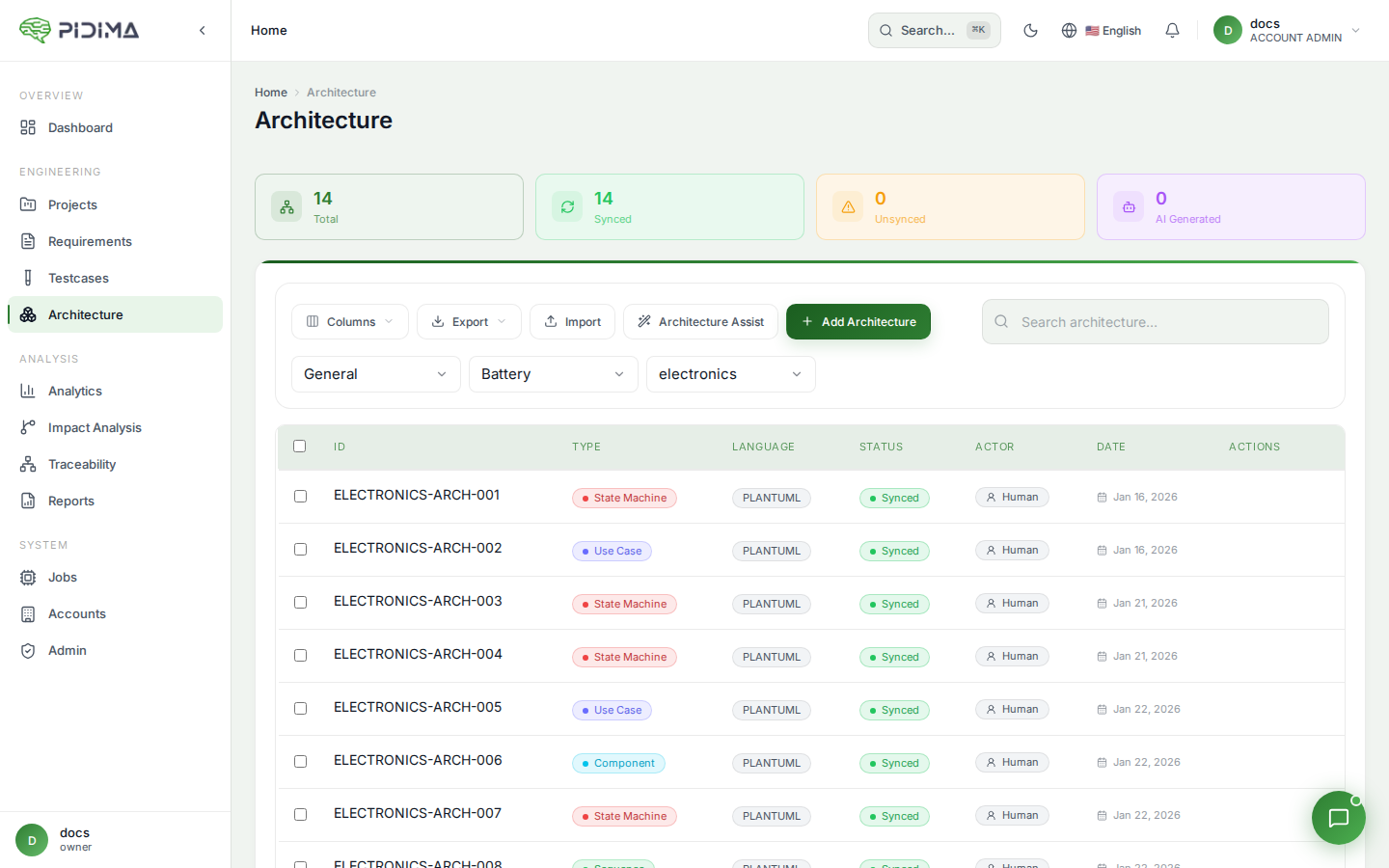
Pidima's Architecture Management feature allows you to create, manage, and maintain system architecture diagrams directly within your projects. Architecture diagrams are essential for visualizing system components, interactions, and structure, making them a critical part of engineering documentation in regulated industries.
What are Architecture Diagrams?
Architecture diagrams are visual representations of your system's structure and behavior. They help teams:
- Visualize System Design — See how components interact and fit together
- Document Decisions — Capture architectural choices and rationale
- Maintain Traceability — Link diagrams to requirements and test cases
- Facilitate Communication — Share a common understanding across teams
- Support Compliance — Maintain audit-ready documentation for regulatory bodies
Diagram Types Supported
Pidima supports multiple PlantUML diagram types to cover different architectural perspectives:
1. Use Case Diagrams
Define system functionality from a user's perspective, showing actors and their interactions with the system.
Best for:
- High-level system behavior
- User interaction flows
- Functional requirements visualization
2. Component Diagrams
Show the organization and dependencies among software components.
Best for:
- System architecture overview
- Module relationships
- Deployment structure
3. Sequence Diagrams
Illustrate how objects interact in a particular sequence over time.
Best for:
- Process flows
- API interactions
- Timing and ordering of operations
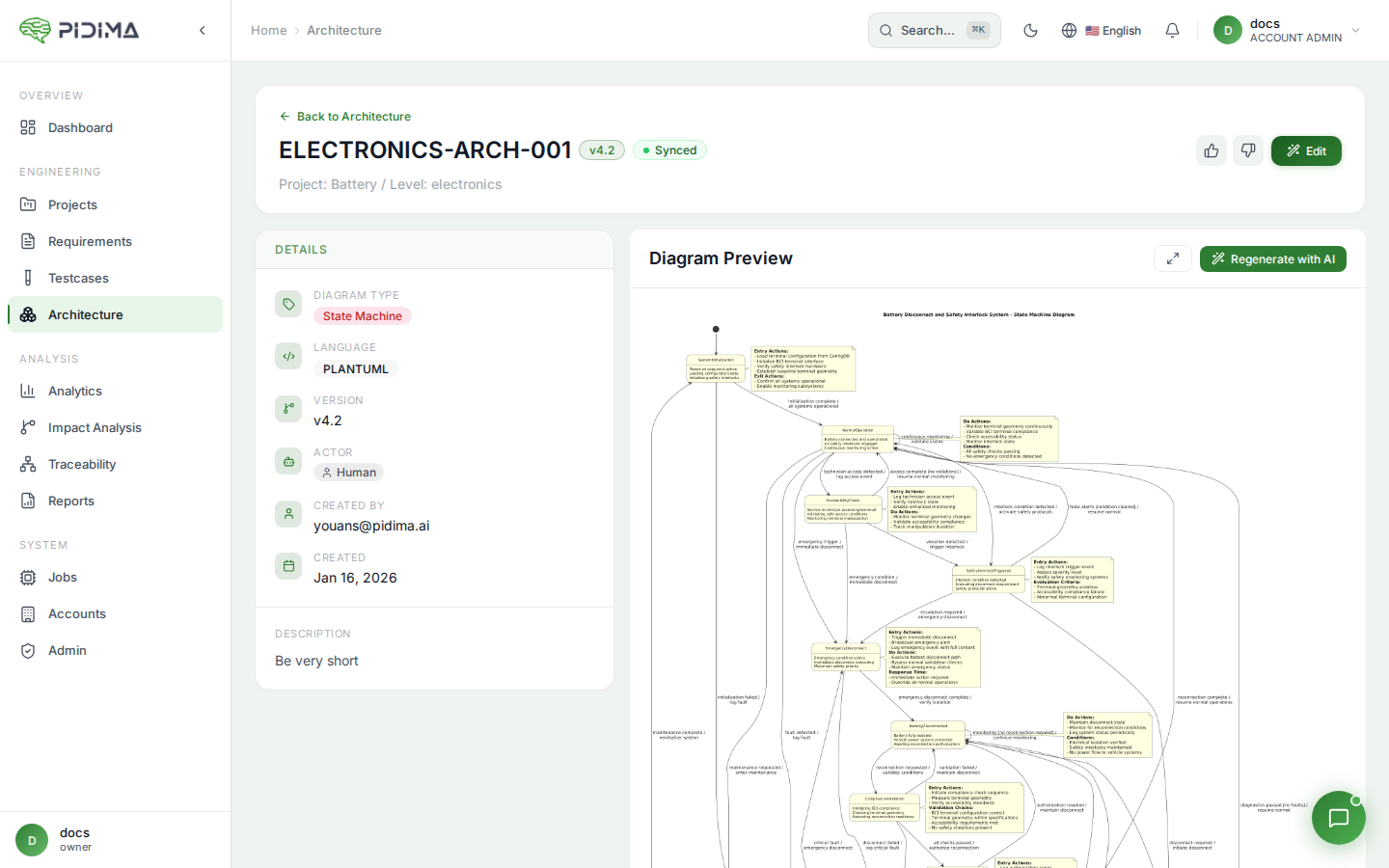
4. State Machine Diagrams
Model the behavior of a single object, showing states and transitions.
Best for:
- Object lifecycle
- Status management
- Workflow states
5. Class Diagrams
Represent the static structure of a system showing classes, attributes, operations, and relationships.
Best for:
- Object-oriented design
- Data models
- Entity relationships
6. Custom Diagrams
Import any PlantUML diagram that doesn't fit the standard categories.
Best for:
- Specialized diagram types
- Custom notation
- Mixed diagram styles
Key Features
🤖 AI-Powered Generation
Generate architecture diagrams automatically from your requirements using AI. Pidima analyzes your requirements and creates appropriate diagrams with proper notation and structure.
📥 Import Existing Diagrams
Import PlantUML files from your existing documentation. Bulk import multiple diagrams at once to quickly migrate your architecture documentation.
🔗 Traceability Links
Link architecture diagrams to requirements and test cases, maintaining complete traceability throughout your development lifecycle.
✏️ Visual Editor
Edit PlantUML code directly in Pidima with real-time preview. See your changes immediately as you refine your diagrams.
📊 Version Control
Track changes to your architecture over time. View diagram history and understand how your system architecture evolved.
🔍 Search and Filter
Quickly find diagrams by name, type, or level. Search across all your project's architecture documentation.
🎯 Level-Based Organization
Organize diagrams within your project's hierarchical structure (levels). Keep architecture documentation aligned with your requirements organization.
⚡ Lightning-Fast Performance
Experience instant loading times even with large projects. Our optimized architecture viewing ensures smooth navigation through hundreds of diagrams and requirements without delays.
Where to Use Architecture Diagrams
During Planning
- Document system design decisions
- Communicate proposed architectures
- Validate technical approaches with stakeholders
During Development
- Guide implementation work
- Maintain up-to-date design documentation
- Support code reviews with visual references
During Testing
- Understand system behavior for test planning
- Link test cases to architectural components
- Verify test coverage across the architecture
During Compliance
- Demonstrate system design to auditors
- Show traceability from requirements to architecture
- Maintain audit-ready documentation
Integration with Pidima Workflow
Architecture diagrams integrate seamlessly with other Pidima features:
Requirements → Architecture Diagrams → Test Cases
     ↓                    ↓                ↓
Documents ← → Traceability Matrix ← → Reports
- Requirements — Link requirements to architecture components they describe
- Test Cases — Connect test cases to architectural elements they verify
- Documents — Use document context when generating diagrams with AI
- Traceability — View complete requirement-architecture-test linkages
- Reports — Include architecture diagrams in compliance reports
Recent Improvements
Enhanced AI Assistant
Our AI assistant for architecture generation has been improved with better error handling and more helpful feedback. If diagram generation encounters issues, you'll receive clear guidance on how to proceed.
Improved Diagram Rendering
We've enhanced the diagram rendering system to handle complex architectures more reliably. The system now provides better error messages if a diagram is too complex, helping you create more maintainable documentation.
Faster Loading for Large Projects
Architecture pages now load instantly, even in projects with hundreds of requirements. View your architecture diagrams and traceability links without any delay, making it easier to work with enterprise-scale projects.
Getting Started
Ready to start using Architecture Management? Choose your path:
- Creating Architecture Diagrams — Learn how to create diagrams manually
- AI-Generated Diagrams — Use AI to generate diagrams from requirements
- Importing Diagrams — Import existing PlantUML files
- Architecture Traceability — Link diagrams to requirements and tests
Best Practices
Keep Diagrams Focused
Each diagram should have a clear purpose and scope. Avoid creating overly complex diagrams that try to show everything.
Maintain Consistency
Use consistent naming conventions and notation across all your architecture diagrams.
Update Regularly
Keep diagrams synchronized with your actual system. Outdated architecture documentation is worse than no documentation.
Link to Requirements
Always link architecture diagrams to the requirements they implement. This maintains traceability and supports compliance.
Use Appropriate Diagram Types
Choose the diagram type that best represents what you're trying to communicate. Don't force information into an inappropriate diagram format.
Document Assumptions
Use the assumptions feature to capture important context about your architectural decisions.