Linking Requirements to Test Cases
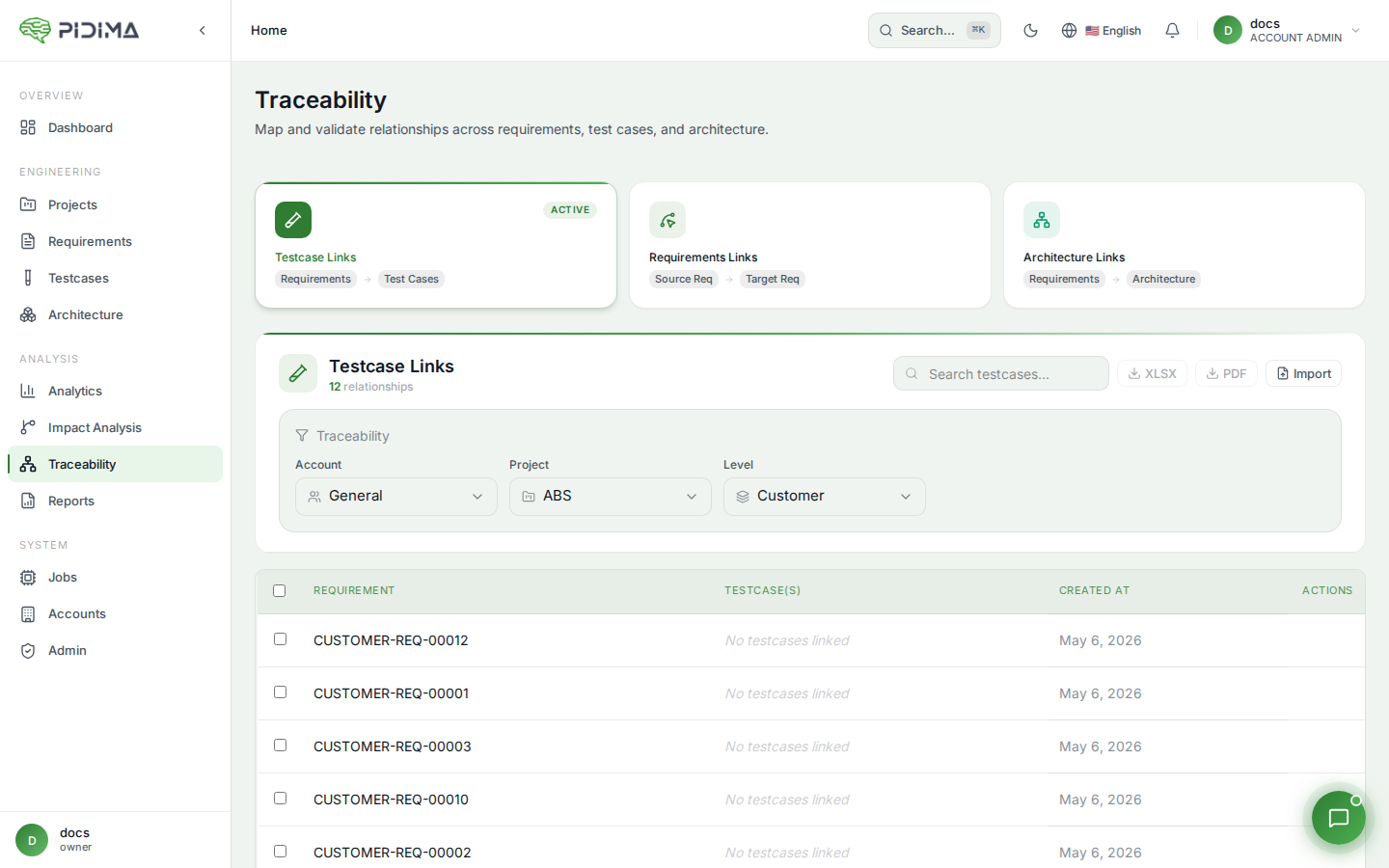
Creating and managing traceability links between requirements and test cases is essential for compliance, quality assurance, and project success. Pidima makes it easy to establish, visualize, and maintain these critical relationships.
Overview
Requirement-to-test case traceability provides:
- Coverage Verification: Ensure every requirement has adequate tests
- Compliance Documentation: Prove testing completeness for audits
- Impact Analysis: Understand testing effects when requirements change
- Bidirectional Navigation: Move seamlessly between requirements and tests
- Gap Identification: Find untested requirements or orphaned tests
Why Link Requirements to Test Cases?
Regulatory Requirements
Industry standards mandate traceability:
- FDA 21 CFR Part 11: Requires test traceability for medical devices
- ISO 26262: Automotive safety standard requires complete test coverage
- DO-178C: Aerospace software must trace requirements to tests
- IEC 62304: Medical device software requires documented test links
- ISO 13485: Quality management requires verification evidence
Project Benefits
Beyond compliance, traceability helps:
- Identify Gaps: Find requirements without test coverage
- Prevent Over-Testing: Avoid redundant or unnecessary tests
- Support Changes: Understand which tests to update when requirements change
- Enable Reviews: Facilitate requirement and test reviews
- Demonstrate Quality: Show stakeholders comprehensive testing
Creating Traceability Links
Pidima provides multiple intuitive ways to create links between requirements and test cases, ensuring complete test coverage and regulatory compliance.
From Requirement Details
Link tests while viewing a requirement:
- Open any requirement in detail view
- Scroll to "Linked Test Cases" section
- Click "Link Test Case" button
- Search for test cases by:
- Test case ID
- Test case title
- Test suite
- Test type
- Status (draft, approved, executed)
- Priority level
- Select one or more test cases to link
- Optional: Choose link type (Verifies, Validates, Demonstrates)
- Click "Add Link" to create relationship
Link appears immediately:
- In requirement's "Linked Test Cases" section
- In test case's "Linked Requirements" section
- In traceability matrix
- In coverage reports
- In compliance dashboards
Visual Feedback: The requirement card displays a green checkmark or coverage badge showing:
- Number of linked test cases
- Coverage percentage
- Test execution status
- Pass/fail indicators
From Test Case Details
Link requirements while viewing a test case:
- Open test case in detail view
- Find "Linked Requirements" section
- Click "Link Requirement" button
- Search for requirements by:
- Requirement ID
- Requirement title
- Requirement type
- Domain or level
- Select one or more requirements
- Click "Add Link" to establish relationship
Bulk Linking
Create multiple links efficiently using Pidima's bulk operations:
Option 1: From Requirements List
- Go to Requirements page
- Select multiple requirements using checkboxes
- Click "Bulk Actions" → "Link to Test Cases"
- Search and select test cases
- Choose link type (applies to all)
- Click "Link All" to create relationships
Visual confirmation: All selected requirements show updated coverage indicators
Option 2: From Test Cases List
- Navigate to Test Cases page
- Select multiple test cases via checkboxes
- Choose "Bulk Actions" → "Link to Requirements"
- Find and select requirements
- Click "Link All"
Option 3: AI-Assisted Bulk Linking
- Select requirements without test links (shown with red indicators)
- Click "Requirements Assist" → "Generate Tests"
- AI analyzes requirements and creates appropriate test cases
- Links are automatically created between requirements and generated tests
- Review and approve generated tests
- Edit any test case before accepting
AI Benefits:
- Smart Test Generation: Creates tests based on requirement type and complexity
- Automatic Linking: Establishes traceability links instantly
- Coverage Analysis: Suggests number and type of tests needed
- Time Savings: Generate 10-20 test cases in minutes instead of hours
Example Workflow:
Selected: 5 requirements without test coverage
Click: [Generate Tests with AI]

AI Analysis:
→ SYSTEM-REQ-00001 (Battery): Suggests 4 tests
→ SYSTEM-REQ-00002 (Safety): Suggests 6 tests
→ SYSTEM-REQ-00003 (Performance): Suggests 3 tests
→ HW-REQ-00001 (Connector): Suggests 2 tests
→ SW-REQ-00001 (Control): Suggests 5 tests

Total: 20 test cases generated with links
Time: 5 minutes (vs 3+ hours manually)
Drag-and-Drop Linking
For visual users, Pidima supports drag-and-drop:
- Open requirement in split-screen view
- Browse test cases in right panel
- Drag test case → Drop onto requirement
- Link is created instantly
- Visual feedback confirms connection
This works in both directions:
- Drag test case to requirement
- Drag requirement to test case
Link Types
Specify the relationship type when linking:
- Verifies: Test case directly verifies the requirement (most common)
- Partially Verifies: Test case covers part of the requirement
- Validates: Test case validates requirement correctness
- Demonstrates: Test case demonstrates requirement implementation
- Explores: Test case explores requirement edge cases
Different link types help with:
- Understanding coverage completeness
- Identifying partial coverage gaps
- Compliance reporting
- Review and audit activities
Viewing Traceability Links
In Requirement Details
Each requirement shows linked test cases:
Linked Test Cases Section:
- Test Case ID: Clickable link to test case
- Test Case Title: Brief description
- Test Type: Unit, Integration, System, Acceptance
- Link Type: Relationship type (Verifies, Validates, etc.)
- Status: Test case execution status
- Actions: Edit link, remove link, view test
Coverage Indicator:
- Green checkmark: Requirement has adequate test coverage
- Yellow warning: Partial coverage, more tests recommended
- Red alert: No test coverage, tests needed
In Test Case Details
Each test case shows linked requirements:
Linked Requirements Section:
- Requirement ID: Clickable link to requirement
- Requirement Title: Brief description
- Requirement Type: Functional, Non-functional
- Requirement Status: Draft, Approved, Implemented
- Link Type: Relationship type
- Actions: Edit link, remove link, view requirement
Traceability Indicator:
- Shows how many requirements this test covers
- Highlights orphaned tests (no requirement links)
In Traceability Matrix
View all links in a comprehensive matrix:
- Navigate to Traceability page
- Select "Requirements to Test Cases" view
- Matrix displays:
- Rows: Requirements
- Columns: Test cases
- Cells: Link indicators showing relationships
- Coverage Summary: Statistics at bottom
Matrix Features:
- Color-coded cells for link types
- Filter by requirement level, domain, or status
- Sort by coverage, requirement ID, or other fields
- Export matrix to Excel or PDF
- Click any cell to view/edit link details
In Traceability Graph
Visualize relationships as a network:
- Go to Traceability → "Graph View"
- Select requirement or test case as focal point
- Graph displays:
- Nodes: Requirements and test cases
- Edges: Traceability links
- Colors: Indicate item types and statuses
- Clusters: Group related items
Interactive Graph:
- Hover over nodes for details
- Click nodes to navigate to item
- Zoom and pan to explore
- Filter to show specific relationships
- Export as image for documentation
Managing Links
Editing Links
Modify existing traceability links:
- Open requirement or test case with link
- Find the link in the "Linked" section
- Click Edit icon next to link
- Update:
- Link type
- Coverage percentage (for partial verification)
- Notes or rationale
- Save changes
Changes are immediately reflected in:
- Both requirement and test case
- Traceability matrix and graph
- Coverage reports
- Audit logs
Removing Links
Delete traceability links when needed:
- Navigate to item with link to remove
- Find link in "Linked Requirements" or "Linked Test Cases"
- Click Remove (trash icon) next to link
- Confirm removal in dialog
- Link is deleted bidirectionally
Note: Removing a link doesn't delete the requirement or test case, only the relationship between them.
Link Validation
Pidima automatically validates links:
- Broken Links: Detects when linked items are deleted
- Invalid Links: Identifies links to wrong item types
- Circular Links: Warns about problematic circular relationships
- Duplicate Links: Finds multiple identical links
Run validation:
- Go to Traceability → "Validation"
- Click "Validate All Links"
- Review report of issues found
- Click "Fix" next to issues to resolve automatically
- Manually review complex issues
Coverage Analysis
Requirement Coverage
Check which requirements have test coverage:
- Navigate to Requirements page
- Enable "Coverage" column in table
- Sort by coverage to identify gaps
- Filter to show:
- Fully Covered: 100% test coverage
- Partially Covered: Some tests, more needed
- Not Covered: No test cases linked
Coverage Indicators:
- ✓ Green: Fully covered
- ⚠ Yellow: Partially covered
- ✗ Red: No coverage
Test Case Coverage
See which test cases link to requirements:
- Go to Test Cases page
- Add "Linked Requirements" column
- Sort to find:
- Orphaned Tests: No requirement links (may be unnecessary)
- Multi-Requirement Tests: Test multiple requirements (integration tests)
- Single-Requirement Tests: Focused unit tests
Coverage Reports
Generate detailed coverage reports:
- Navigate to Test Reports → "Coverage Report"
- Select scope:
- All requirements
- Specific level (System, Subsystem, etc.)
- Specific domain (Software, Hardware, etc.)
- Specific module or feature
- Configure report options:
- Include/exclude requirement types
- Show test details or summary only
- Highlight gaps or show all
- Click "Generate Report"
Report Includes:
- Overall Coverage Percentage: Total requirements with tests
- Coverage by Level: Breakdown by requirement hierarchy
- Coverage by Domain: Breakdown by functional area
- Gap List: Requirements without adequate tests
- Over-Coverage: Requirements with excessive tests
- Orphaned Tests: Tests not linked to requirements
Export report as PDF or Excel for documentation and audits.
Visual Traceability Workflow
Real-World Example: Battery System Requirements
Let's walk through a complete traceability workflow using a battery system example:
Starting Point:
SYSTEM-REQ-00003: Battery Verification System
"When a vehicle battery is selected for installation, the system
shall verify that the battery meets all specifications:
(1) voltage 12.0V ±0.6V, (2) group size per BCI standards,
(3) CCA rating at -18°C"
Step 1: Identify Test Coverage Needs
- Functional requirements → Need functional tests
- Measurable specifications → Need validation tests
- Multiple criteria → Need separate test cases for each
Step 2: Create or Link Test Cases
Option A: Manual Linking (if tests exist)
- Open SYSTEM-REQ-00003
- Click "Link Test Case"
- Search for existing battery tests
- Select relevant tests:
- TC-SYS-001: Voltage Measurement Test
- TC-SYS-002: Group Size Verification
- TC-SYS-003: CCA Rating Test
Option B: AI-Generated Tests (create new)
- Click "Generate Tests" button
- AI suggests 4 test cases:
TC-001: Nominal Voltage Test (12.0V ±0.6V)TC-002: Physical Group Size VerificationTC-003: Cold Cranking Amps at -18°CTC-004: Battery Compatibility Matrix
- Review and accept
- Links created automatically
Step 3: Visual Confirmation
The requirement now shows:
SYSTEM-REQ-00003: Battery Verification System
├─ Status: ✅ Approved
├─ Coverage: ✅ 100% (4/4 criteria tested)
├─ Linked Test Cases: 4
│  ├─ TC-SYS-001: Voltage ✅ Passed
│  ├─ TC-SYS-002: Group Size ✅ Passed
│  ├─ TC-SYS-003: CCA Rating ⏳ Pending
│  └─ TC-SYS-004: Compatibility ✅ Passed
└─ Traceability: Complete ✅
Step 4: Verify in Traceability Matrix
Navigate to Traceability view:
                TC-001  TC-002  TC-003  TC-004
SYSTEM-REQ-00001   ✓       ✓       -       -
SYSTEM-REQ-00002   -       ✓       ✓       ✓
SYSTEM-REQ-00003   ✓       ✓       ✓       ✓  ← Complete
HW-REQ-00001       ✓       -       -       -
Integration with Requirement Changes
When requirements change, traceability links help manage updates:
Scenario: Voltage changes from 12V to 24V
-
Change Detection:
SYSTEM-REQ-00003 modified: "12V" → "24V"Affected test cases detected:⚠️ TC-SYS-001: References "12V" (needs update)⚠️ TC-SYS-003: Uses "12V" in calculations✅ TC-SYS-002: No voltage dependency -
Smart Update:
- Linked tests marked as "unsynced" (orange border)
- Smart replacement suggests updates
- Test gap analysis identifies new safety tests needed for 24V
-
Coverage Maintenance:
- Original 4 tests updated
- 3 additional safety tests generated for 24V
- Total: 7 tests, complete coverage maintained
Visual Indicator on Requirement:
SYSTEM-REQ-00003 (v2.0): Battery 24V
├─ Status: ⚠️ Review needed
├─ Coverage: ⚠️ 57% (4/7 criteria tested)
├─ Linked Test Cases: 4 existing + 3 new suggested
│  ├─ TC-SYS-001: Voltage ⚠️ Unsynced (needs update)
│  ├─ TC-SYS-002: Group Size ✅ Still valid
│  ├─ TC-SYS-003: CCA Rating ⚠️ Unsynced
│  ├─ TC-SYS-004: Compatibility ⚠️ Unsynced
│  ├─ TC-SAFE-001: Shock Protection ➕ New (24V)
│  ├─ TC-SAFE-002: Arc Flash Test ➕ New (24V)
│  └─ TC-SAFE-003: Insulation Test ➕ New (24V)
└─ Action Required: Review and update tests
AI-Powered Link Suggestions
Automatic Link Recommendations
Pidima's AI suggests appropriate traceability links:
- Open a requirement without test links
- Click "Suggest Test Cases" button (AI icon)
- AI analyzes:
- Requirement description and attributes
- Existing test cases in project
- Similar requirements and their tests
- Industry best practices
- Review suggested links with rationale
- Select suggestions to accept
- Click "Create Links" to establish relationships
Smart Test Generation
AI can generate tests with automatic linking:
- Select requirements needing test coverage
- Click "Requirements Assist" → "Generate Tests"
- Configure test generation:
- Test types to create (unit, integration, system)
- Number of tests per requirement
- Test detail level
- AI generates test cases
- Links are created automatically between requirements and generated tests
- Review and approve tests
See Generate Tests for detailed guidance.
Link Validation AI
AI helps maintain link quality:
- Detects Mismatches: Finds test cases that don't actually verify their linked requirements
- Suggests Corrections: Recommends better test-requirement pairings
- Identifies Gaps: Finds requirements needing additional test types
- Optimizes Coverage: Suggests consolidating redundant tests
Run AI validation:
- Go to Traceability → "AI Validation"
- Click "Analyze Links"
- Review AI findings and suggestions
- Accept recommendations or mark as false positives
- Update links based on analysis
Integration with Test Execution
Execution Status in Requirements
See test execution results in requirement details:
- Passed Tests: Green indicators, requirement verified
- Failed Tests: Red indicators, requirement not met
- Pending Tests: Gray indicators, tests not yet run
- Blocked Tests: Orange indicators, tests can't run
Requirements Coverage in Test Plans
Test plans show requirement coverage:
- Create or open test plan
- View "Requirements Coverage" section
- See which requirements are covered by plan
- Identify requirements not included in plan
- Add additional tests to improve coverage
Test Results Reporting
Test execution results reference requirements:
- Run test suite or individual tests
- View Test Results Report
- Results show:
- Test case pass/fail status
- Linked requirements for each test
- Overall requirement verification status
- Requirements at risk (failing tests)
Best Practices
Linking Strategy
One-to-Many Relationships
- Each requirement should link to multiple test cases
- Cover positive scenarios, negative scenarios, and edge cases
- Include different test types (unit, integration, system)
Clear Link Types
- Use "Verifies" for direct requirement validation
- Use "Partially Verifies" when test covers subset of requirement
- Document why partial coverage is acceptable
Maintain Bidirectional Links
- Always link from both requirement and test case perspectives
- Use Pidima's linking tools (creates bidirectional links automatically)
- Validate links regularly
Coverage Goals
Set appropriate coverage targets:
- Safety-Critical: 100% coverage with multiple tests per requirement
- High-Risk: 95%+ coverage with positive and negative tests
- Standard Features: 80%+ coverage with key scenarios
- Low-Risk: 60%+ coverage with happy path tests
Adjust based on your industry and regulatory requirements.
Link Maintenance
Keep links current:
- Review Regularly: Check links monthly or per sprint
- Update with Changes: Modify links when requirements or tests change
- Clean Up: Remove obsolete links and orphaned tests
- Validate: Run automated validation quarterly
- Audit: Include traceability in code review process
Documentation
Document traceability approach:
- Define link types and their meanings for your project
- Set coverage targets by requirement level and domain
- Establish process for creating and maintaining links
- Document exceptions (requirements without tests and why)
- Include traceability in project standards
Compliance and Audits
Generating Audit Reports
Prepare for audits with traceability reports:
- Navigate to Test Reports → "Audit Package"
- Select audit scope:
- Date range
- Requirement levels
- Test types
- Include:
- ✓ Traceability matrix
- ✓ Coverage report
- ✓ Test execution results
- ✓ Link validation results
- ✓ Change history
- Generate PDF package
- Export with digital signatures if required
Demonstrating Compliance
Use traceability to prove compliance:
FDA Audits (Medical Devices)
- Show complete traceability matrix
- Demonstrate 100% requirement verification
- Provide test execution evidence
- Show validation documentation
ISO 26262 (Automotive)
- Display coverage by ASIL level
- Prove test case independence
- Show bidirectional traceability
- Demonstrate test completeness
DO-178C (Aerospace)
- Provide structural coverage analysis
- Show requirements-based testing
- Demonstrate test case independence
- Prove verification completeness
Audit Trail
Pidima maintains complete audit trail:
- Link Creation: Who, when, and why links were created
- Link Modification: All changes to link types or notes
- Link Deletion: Record of removed links with justification
- Coverage Changes: Historical coverage metrics
- Validation Results: Past validation runs and outcomes
Access audit trail:
- Go to Traceability → "Audit Trail"
- Filter by date, user, or action type
- Export trail for audit documentation
Troubleshooting
Links Not Appearing
If traceability links don't show:
- Verify item permissions (you must have read access to both items)
- Check filters (links may be hidden by current filters)
- Refresh the page
- Clear browser cache
- Check if linked item was deleted or archived
Coverage Percentage Incorrect
If coverage seems wrong:
- Run link validation to check for broken links
- Verify link types (only "Verifies" counts as full coverage)
- Check if requirements were split (coverage may need redistribution)
- Review partial verification percentages
- Regenerate coverage report
Slow Traceability Matrix
If matrix loads slowly:
- Reduce scope (filter by level, domain, or date)
- Use summary view instead of detailed
- Export to Excel for offline analysis
- Increase browser memory allocation
- Contact support for large project optimization