Sync & Unsync Requirements
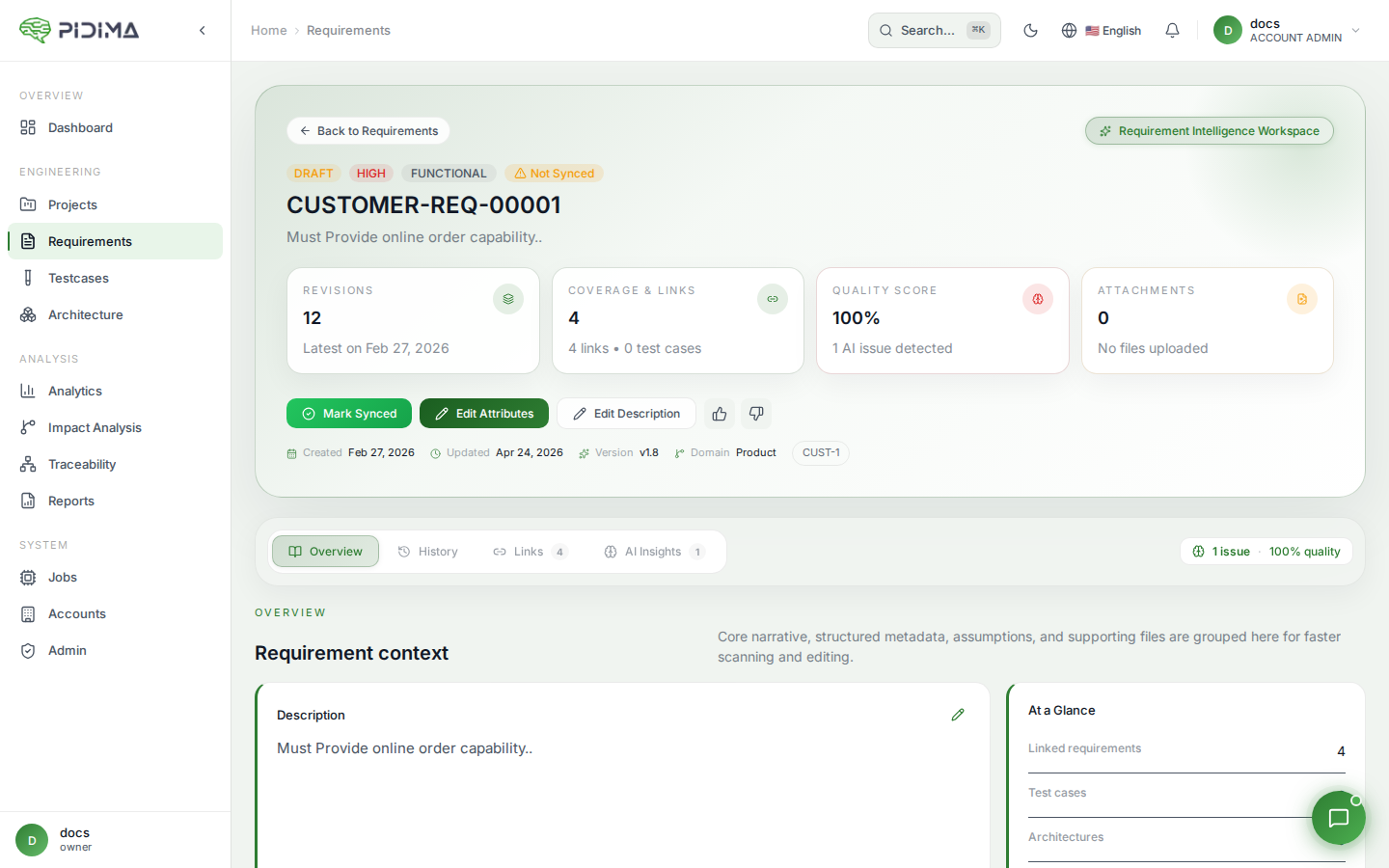
Pidima's synchronization feature helps you manage requirements that are linked to external sources or need coordination across different systems, teams, or document versions. Visual indicators show sync status at a glance, ensuring you always know which requirements are current.
Overview
Requirements synchronization provides:
- External System Integration: Link requirements to external tools or databases
- Document Alignment: Track requirements derived from specification documents
- Team Collaboration: Coordinate requirements across distributed teams
- Change Detection: Identify when external sources have been updated
- Version Control: Maintain consistency between Pidima and source systems
- Smart Term Replacement: Intelligently update related requirements when values change
- Impact Analysis: Understand the scope of changes throughout your requirement tree
What is Synchronization?
Synchronization in Pidima ensures that requirements remain consistent with their sources and related items. When a requirement changes, the sync system:
- Detects the Change: Automatically identifies modifications
- Analyzes Impact: Determines which related items are affected
- Marks for Review: Flags items that need attention (shown with orange border)
- Provides Tools: Offers smart features to update related requirements efficiently
- Maintains History: Tracks all sync activities for audit purposes
Sync Status Indicators
Visual Status Display
Requirements display their sync status through visual indicators:
Synced Requirements
- Standard appearance with regular border
- No special highlighting
- Indicates requirement is current with source
- All data matches external references
Unsynced Requirements
- Orange/yellow border around requirement card
- Indicates changes in source or Pidima
- Requires review and sync action
- May have pending updates
Status Badge
Additional status information appears in the requirement header:
- Synced ✓: Green checkmark, current with source
- Unsynced ⚠: Orange warning, needs attention
- Sync Pending ⏳: Update in progress
- Sync Failed ✗: Synchronization error occurred
Why Requirements Become Unsynced
Requirements may show unsynced status for several reasons:
External Source Changes
Document Updates
- Specification document was revised
- Requirements text modified in source
- Attributes changed in external system
- New version of standard published
Database Changes
- External requirement database updated
- Field values modified in source system
- Requirement moved or reorganized
- Metadata updated externally
Internal Modifications
Local Edits
- Requirement description edited in Pidima
- Attributes changed locally
- Custom fields modified
- Versions updated in Pidima
Conflict Detection
- Changes made both in Pidima and source
- Conflicting updates need resolution
- User review required before sync
Configuration Changes
Sync Settings Modified
- Sync rules updated
- Mapping configurations changed
- Filters or scopes adjusted
- Integration settings modified
Viewing Unsynced Requirements
List View
In the requirements list, unsynced items are easily identified:
- Orange/yellow border highlights unsynced requirements
- Status badge shows "Unsynced" warning
- Last modified date indicates when change occurred
- Hover over requirement for sync details
Filter by Sync Status
Focus on requirements needing attention:
- Click Filter button in requirements toolbar
- Select "Sync Status" filter
- Choose options:
- Unsynced Only: Show only requirements needing sync
- Synced Only: Show current requirements
- Sync Failed: Show requirements with errors
- All: Show all regardless of status
- Apply filter to refine list
Bulk Identification
Identify all unsynced requirements:
- Navigate to Requirements page
- Look for orange-bordered cards
- Use bulk selection (checkbox) to select multiple unsynced items
- Take bulk actions on selected requirements
Syncing Requirements
Manual Sync
Synchronize individual requirements:
- Open the unsynced requirement (orange border)
- Click "Sync" button in the toolbar
- Review proposed changes:
- Changes from external source (shown in green)
- Current Pidima values (shown in red if different)
- Conflict resolution options if both changed
- Choose sync direction:
- Pull from Source: Accept external changes
- Push to Source: Update external system with Pidima values
- Custom Merge: Select specific changes to apply
- Click "Apply Sync" to complete
Bulk Sync
Synchronize multiple requirements at once:
- Select unsynced requirements using checkboxes
- Click "Bulk Actions" → "Sync"
- Choose sync strategy:
- Auto-Sync: Automatically resolve non-conflicting changes
- Review Each: Review and approve each requirement
- Pull All: Accept all external changes
- Push All: Update all external sources
- Click "Start Sync" to begin
- Review results and handle conflicts if any
Automatic Sync
Configure automatic synchronization:
- Go to Project Settings → "Integrations"
- Select the connected system or document
- Enable "Auto-Sync"
- Configure sync options:
- Frequency: Hourly, Daily, or Real-time
- Direction: Pull, Push, or Bidirectional
- Conflict Resolution: Auto-resolve or Require Review
- Save settings
Auto-sync runs in the background and notifies you of:
- Successfully synced requirements
- Conflicts requiring manual review
- Sync failures or errors
Sync Conflict Resolution
Understanding Conflicts
Conflicts occur when:
- Requirement changed in both Pidima and source
- Different users modified the same field
- Automated edits conflict with manual changes
- External system has incompatible data
Resolving Conflicts
When opening a conflicting requirement:
-
View "Conflict Details" panel showing:
- Source Change: What external system has
- Local Change: What Pidima has
- Original Value: Value before any changes
- Changed By: Who made each change
- Changed When: Timestamp of each change
-
Choose resolution:
- Accept Source: Use external system's version
- Keep Local: Preserve Pidima's version
- Merge Both: Combine changes manually
- Revert All: Go back to original value
-
Field-by-field resolution for multiple conflicts:
- Select preferred value for each conflicting field
- Add comments explaining resolution choice
- Maintain audit trail of conflict resolution
-
Click "Resolve Conflict" to complete
Best Practices for Conflicts
- Communicate: Discuss with team members before resolving
- Document Decisions: Add comments explaining why you chose a resolution
- Follow Policy: Adhere to project guidelines for conflict handling
- Review Impact: Check if resolution affects linked items (tests, architecture)
- Test After: Verify requirements still make sense after resolution
Linking Requirements to Sources
Document-Based Linking
Link requirements to specific sections in documents:
- Open requirement details
- Click "Link to Document" in toolbar
- Select source document from project attachments
- Choose link type:
- Derived From: Requirement comes from this document section
- References: Requirement mentions this specification
- Implements: Requirement fulfills this standard section
- Specify document location:
- Page number
- Section number
- Paragraph or clause ID
- Save link
Pidima monitors linked document sections for changes and flags requirements when sources update.
External System Linking
Connect requirements to external tools:
- Configure integration in Project Settings → "Integrations"
- Set up connection to external system (JIRA, Azure DevOps, IBM DOORS, etc.)
- Map fields between systems
- Link individual requirements:
- Open requirement in Pidima
- Click "Link External"
- Enter external requirement ID
- Confirm link
- Save configuration
Linked requirements automatically sync based on your settings.
Traceability Links
Sync status also applies to traceability:
- Requirements linked to test cases sync their relationships
- Architecture elements linked to requirements maintain consistency
- Parent-child requirement hierarchies stay synchronized
- Cross-project links remain current
Sync Notifications
Notification Types
Pidima notifies you when:
- Sync Completed: Successful synchronization finished
- Conflicts Detected: Manual review required
- Sync Failed: Error occurred during sync
- Source Updated: External source has new changes
- Auto-Sync Summary: Periodic summary of automatic syncs
Notification Settings
Configure sync notifications:
- Go to Account Settings → "Notifications"
- Find "Requirement Synchronization" section
- Choose notification preferences:
- Email: Receive emails for sync events
- In-App: Show notifications in Pidima
- Frequency: Immediate, Daily Digest, or Weekly Summary
- Select notification types to receive
- Save preferences
Monitoring Sync Health
Sync Dashboard
View overall sync status:
- Navigate to Project Dashboard
- Check "Sync Health" widget showing:
- Total requirements with sync enabled
- Currently synced (green)
- Unsynced / needs attention (orange)
- Sync failed / errors (red)
- Last sync time
- Click widget to see detailed sync report
Sync History
Review past synchronization activity:
- Go to Requirements → "Sync History"
- View log of sync events:
- Date and time of sync
- Requirements affected
- Changes applied
- User who triggered sync
- Success or failure status
- Filter by date, status, or requirement
- Export sync history for auditing
Audit Trail
Maintain compliance with sync audit trail:
- Every sync action is logged
- Changes are versioned and traceable
- Conflict resolutions are documented
- Source of changes is recorded
- Timestamps and users tracked
Complete Smart Sync Workflow
Here's a complete example of using Pidima's smart sync features:
Example: Voltage Upgrade Project
Initial State:
- Requirement: "Battery 12V" with 20 test cases
- 5 child requirements (Hardware and Software levels)
- 50+ total items in requirement tree
Step 1: Make the Change
User edits: "Battery 12V" → "Battery 24V"
System detects: Voltage parameter change
Step 2: Smart Replacement Detection
┌────────────────────────────────────────┐
│ 🔍 Smart Replacement Detected          │
├────────────────────────────────────────┤
│ Pattern: "12V" → "24V"                 │
│ Found 47 occurrences across tree      │
│                                        │
│ ✓ Simple replacements: 32             │
│ ⚙️ Calculations to review: 12         │
│ ⚠️ Context-dependent: 3               │
│                                        │
│ [Preview Changes] [Manual Review]     │
└────────────────────────────────────────┘
Step 3: Review and Apply Replacements User reviews the 47 references:
- Accepts 32 automatic text replacements
- Reviews 12 calculations (adjusts currents for constant power)
- Confirms 3 non-voltage terms remain unchanged
Result: 47 items updated in 2 minutes (vs 2 hours manually)
Step 4: Test Gap Analysis
┌────────────────────────────────────────┐
│ ⚠️ Test Coverage Gap Detected          │
├────────────────────────────────────────┤
│ 24V requires additional safety tests  │
│                                        │
│ Recommended: +8 test cases             │
│ • 3 safety tests (IEC 60950-1)        │
│ • 3 component stress tests            │
│ • 2 EMI/EMC tests                     │
│                                        │
│ [Generate Tests] [Review] [Skip]      │
└────────────────────────────────────────┘
Step 5: Generate Missing Tests User reviews and approves 6 of 8 suggested tests, edits 2 to match project standards.
Final Result:
- ✅ Requirement updated: "Battery 24V"
- ✅ 47 related items automatically updated
- ✅ 6 new safety tests added
- ✅ Complete test coverage for 24V
- ⏱️ Total time: 30 minutes (saved 4 hours)
- 💰 Cost savings: $400+ in engineering time
Workflow Comparison
Without Smart Sync (Traditional):
- Change requirement manually (5 min)
- Find all related requirements (30 min)
- Update each one individually (2 hours)
- Identify missing tests manually (1 hour)
- Write new test cases (1 hour) Total: 4.5 hours
With Smart Sync (Pidima):
- Change requirement (5 min)
- Review smart replacement preview (10 min)
- Apply approved changes (5 min)
- Review generated test suggestions (10 min) Total: 30 minutes
Time Saved: 89%
Use Cases
Importing from Specifications
When importing requirements from specification documents:
- Upload specification to project
- Import requirements using AI or manual entry
- Link each requirement to source document section
- Enable document monitoring
- Receive notification when specification updates
- Review unsynced requirements when document changes
- Sync to incorporate specification updates
Multi-Team Coordination
For requirements shared across teams:
- Central team maintains requirements in external system
- Project team works in Pidima
- Configure bidirectional sync
- Teams see unsynced status when either side makes changes
- Regular sync meetings to resolve conflicts
- Both systems stay current and consistent
Regulatory Compliance
Maintain traceability to standards:
- Link requirements to specific regulation clauses
- Monitor regulations for updates (manual or automatic)
- Flag affected requirements when regulations change
- Review and update requirements to maintain compliance
- Document all changes in audit trail
- Export sync history for regulatory submissions
Version Control
Track requirement evolution across project phases:
- Link requirements to baseline versions
- Create new project phase
- Some requirements change, becoming unsynced
- Review unsynced requirements
- Approve changes and sync to new baseline
- Maintain history of all versions and changes
Troubleshooting
Requirements Won't Sync
If sync fails repeatedly:
- Check integration connection status
- Verify external system is accessible
- Review field mappings for errors
- Check for data type mismatches
- Ensure you have permissions in both systems
- Review sync logs for specific error messages
- Contact support with log details
Unexpected Unsynced Status
If requirements show unsynced unexpectedly:
- Check sync settings and rules
- Review recent changes in Pidima and source
- Verify document versions and updates
- Check if sync was disabled temporarily
- Look for system maintenance or outages
- Review sync history for clues
Performance Issues
If sync is slow or timing out:
- Reduce number of requirements synced at once
- Increase sync frequency to smaller batches
- Disable auto-sync during bulk edits
- Optimize field mappings (sync fewer fields)
- Schedule syncs during off-peak hours
- Check network connectivity and speeds
Smart Sync Features
Smart Term Replacement
When you change a requirement value (e.g., "Battery 12V" → "Battery 24V"), Pidima can intelligently update related requirements across your entire project tree.
How It Works
Pattern Detection The system automatically detects value changes and searches for related references:
Change detected: "12V" → "24V"
Searching requirement tree...
Found 47 references to "12V"

Classification:
✓ 32 direct voltage references (auto-update)
? 12 calculations requiring review
✓ 3 non-voltage uses (keep unchanged)
Smart Classification
Direct Text Replacement (Auto-Fix) Simple voltage references are automatically identified and can be updated:
- ✓ "Battery voltage: 12V" → "Battery voltage: 24V"
- ✓ "Operating range: 11-13V" → "Operating range: 22-26V" (proportional)
- ✓ "Nominal: 12 Volts" → "Nominal: 24 Volts"
- ✗ "12-pin connector" → Kept unchanged (not voltage-related)
- ✗ "12 months warranty" → Kept unchanged (contextual awareness)
Related Calculations (Review Required) Formulas and calculations are detected and suggested updates are provided:
Before: "Power: 12V × 10A = 120W"
After:  "Power: 24V × 5A = 120W"
(Current auto-adjusted using P=VI formula)

User can: [✓ Accept] [✏ Edit 5A] [✗ Keep Original]
Context Detection (No Change) The system intelligently preserves non-related uses of numbers:
- "12-pin connector" remains unchanged
- "Chapter 12" stays as is
- "ISO 12345" is not modified
Interactive Preview
Before applying changes, review everything in an interactive preview:
Smart Replacement Preview: 12V → 24V

SYSTEM-REQ-00001: Battery Specification
  ├─ TC-SYS-003: "Nominal voltage is 12V"
  │   Before: "Nominal voltage is 12V"
  │   After:  "Nominal voltage is 24V"
  │   [✓] Auto-apply
  │
  ├─ TC-SYS-007: "Max current at 12V is 50A"
  │   Before: "Max current at 12V is 50A"
  │   After:  "Max current at 24V is 25A"
  │   [?] Review (Calculation detected: P=VI)
  │
  └─ HW-REQ-001: "12-pin connector required"
      Before: "12-pin connector required"
      After:  "12-pin connector required"
      [✓] Keep unchanged (Not voltage-related)

Progress: 3/47 items reviewed
[Accept All Text] [Review All Calculations] [Apply]
Benefits:
- Save hours of manual updates (4-6 hours → 30 minutes)
- Ensure consistency across all requirements
- Avoid human error in calculations
- Maintain context awareness
Level-Scoped Impact
When a parent requirement changes, Pidima intelligently manages the impact on child requirements.
Smart Impact Strategy
Same-Level Items Items at the same level as the changed requirement are marked for review:
Battery Specification [CHANGED: 12V → 24V]
├── [20 Test Cases] → Marked unsynced (orange border)
├── [3 Architectures] → Marked unsynced (orange border)
Child Requirements Child requirements at lower levels are handled intelligently:
Battery Specification [CHANGED]
  └── Hardware Requirements
      ├── HW-REQ-001 → Can remain synced (independent work)
      ├── HW-REQ-002 → Can remain synced (independent work)
      └── HW-REQ-003 → Can remain synced (independent work)
Why This Matters:
- Respects Work Boundaries: Child requirements may have been refined, translated, or enhanced independently
- Prevents Cascade Hell: Avoids invalidating hundreds of items across multiple levels
- Clear Ownership: You review items at your level; child owners review theirs
- Efficient Updates: Focused, manageable scope of work
User Notification
When you change a requirement, you see:
⚠️ Requirement Changed

20 test cases marked for review (orange border)
3 architectures marked for review (orange border)

ℹ️ 5 child requirements unchanged
   (Review manually if impact extends to child levels)

[View Affected Items] [Use Smart Replacement] [Confirm]
Test Gap Detection
When requirements change significantly (e.g., voltage increase), additional test coverage may be needed.
Gap Analysis
Pidima automatically analyzes changes for test coverage gaps:
Change: "Battery 12V" → "Battery 24V"

⚠️ Test Coverage Gap Detected

At 24V, additional testing required:
• Higher voltage = greater shock risk (safety tests)
• Different safety standards (IEC 60950-1 for >20V)
• Arc flash hazards (not present at 12V)
• Component stress at higher voltage

Current: 20 test cases
Recommended: 28 test cases (+8 new)

[Generate Missing Tests] [Review Details] [Skip]
Auto-Generated Test Suggestions
The system suggests specific tests based on the change:
Safety Tests (24V Specific)
-
"Electrical Shock Protection Test"
- Verify IEC 60950-1 compliance for >20V systems
- Ensure terminal protection requires tools
-
"Arc Flash Prevention Test"
- Limit short circuit current to prevent arc flash
- Test protective measures at 24V
-
"Insulation Rating Verification"
- Test insulation withstands 24V + safety margin
- Verify dielectric test requirements
Component Stress Tests 4. "Capacitor Ripple Current at 24V" 5. "Connector Heating Test (V² effects)" 6. "Wire Gauge Verification for 24V"
EMI/EMC Tests 7. "EMI Emissions at 24V" 8. "Transient Protection Verification"
Each suggested test includes:
- Complete description
- Rationale for why it's needed
- Link to relevant standards
- Editable before creation
Advanced Features
Conditional Sync
Set up rules for selective synchronization:
- Sync only requirements matching criteria (e.g., status = "Approved")
- Exclude certain fields from sync
- Apply transformations during sync (e.g., format dates)
- Map custom fields between systems
Webhook Integration
Trigger actions on sync events:
- Send notifications to Slack or Teams
- Create JIRA tickets for conflicts
- Update external dashboards
- Trigger CI/CD pipelines
- Log to external systems
API Access
Manage sync programmatically:
- Trigger sync via API
- Query sync status
- Resolve conflicts automatically
- Configure sync rules
- Retrieve sync history
See Integration & API for details.