Architecture Traceability
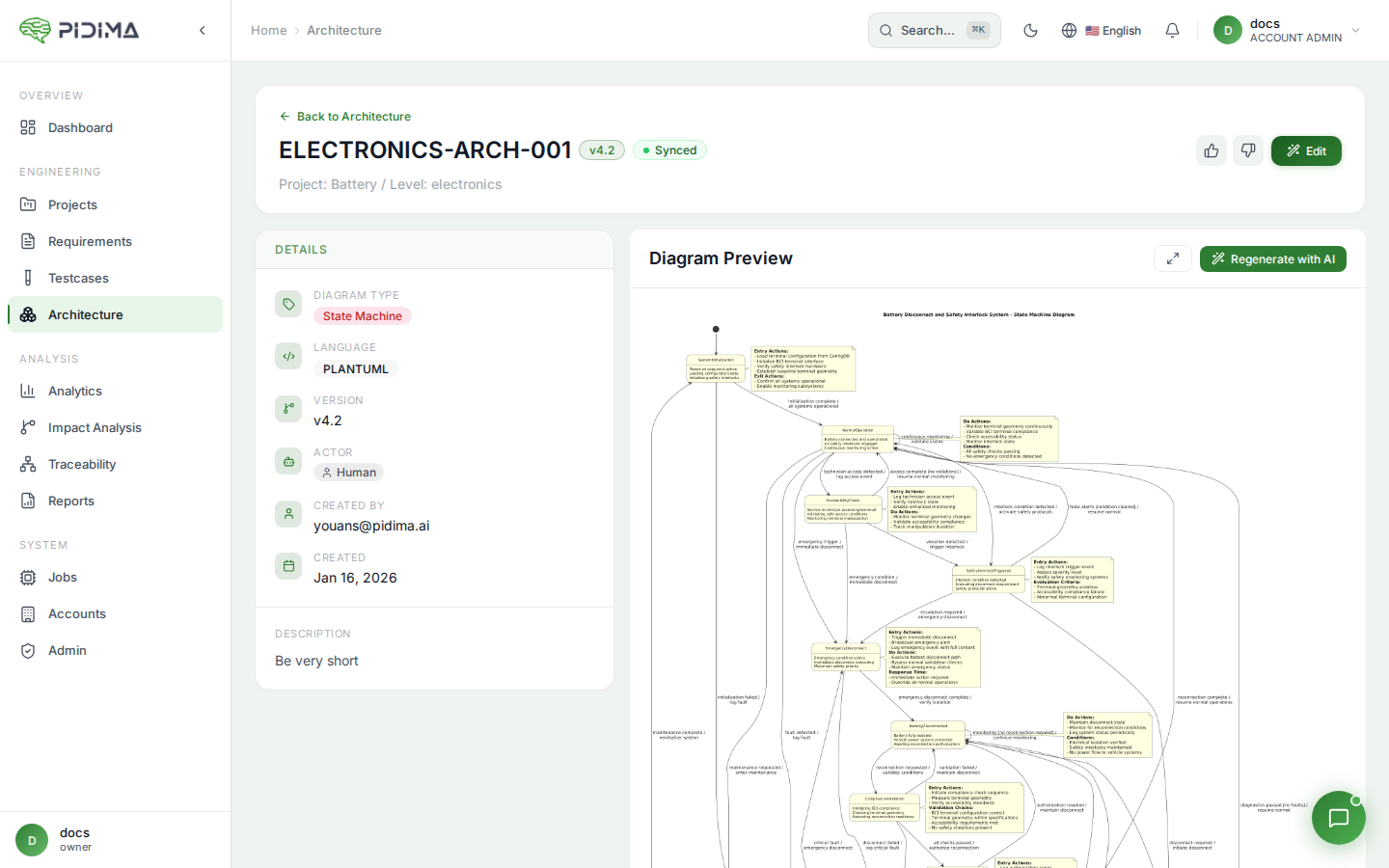
Overview
Architecture traceability in Pidima connects your architecture diagrams with requirements and test cases, creating a complete documentation chain. This is essential for regulated industries where you must demonstrate how requirements are implemented in the architecture and verified by tests.
Why Traceability Matters
Regulatory Compliance
Demonstrate to auditors that:
- Every requirement has architectural representation
- Architecture decisions align with requirements
- Test cases verify architectural components
- Changes are tracked across the system
Impact Analysis
Understand the effect of changes:
- Which diagrams are affected by a requirement change?
- Which requirements depend on an architectural component?
- What tests need updating when architecture changes?
Documentation Completeness
Ensure comprehensive documentation:
- No orphaned diagrams (not linked to requirements)
- No requirements without architectural representation
- Complete coverage across the development lifecycle
Team Communication
Facilitate collaboration:
- Developers see architecture for requirements they implement
- Testers understand architecture they're verifying
- Architects see which requirements drive design decisions
Traceability Relationships
Requirements → Architecture
Link Type: "Described By" or "Implements"
A requirement is described by architecture diagrams that show how it's implemented.
Example:
- Requirement: "User shall authenticate with username and password"
- Architecture: User authentication sequence diagram
Architecture → Requirements
Link Type: "Describes" or "Implements"
An architecture diagram describes one or more requirements.
Example:
- Architecture: API Gateway component diagram
- Requirements: All requirements related to API routing, authentication, and service integration
Architecture → Test Cases
Link Type: "Verified By"
Architecture components are verified by test cases.
Example:
- Architecture: Payment processing sequence diagram
- Test Cases: Payment flow tests, error handling tests, security tests
Viewing Traceability
From Architecture Details Page
View Linked Requirements
- Navigate to Architecture page
- Click on an architecture diagram
- Scroll to Linked Requirements section
- See all requirements linked to this diagram
Information shown:
- Requirement ID and name
- Requirement type
- Priority and status
- Quick link to requirement details
View Linked Test Cases (Indirect)
Test cases linked to the requirements are indirectly linked to the architecture.
- View linked requirements
- Click on a requirement
- See test cases linked to that requirement
From Requirements Details Page
View Linked Architecture
- Navigate to Requirements page
- Click on a requirement
- Scroll to Architecture section
- See all diagrams linked to this requirement
Information shown:
- Diagram name
- Diagram type (Use Case, Component, etc.)
- Created date
- Quick preview/link to diagram
From Traceability Matrix
The traceability matrix provides a comprehensive view:
Requirements-Architecture Matrix
- Navigate to Traceability page
- Select Architecture tab
- View matrix showing:
- Rows: Requirements
- Columns: Architecture diagrams
- Cells: Links between them
Features:
- Filter by level, status, priority
- Search requirements and diagrams
- Export to Excel
- Identify coverage gaps
Coverage Indicators
- ✅ Green — Requirement has architecture links
- ⚠️ Yellow — Partial coverage
- ❌ Red — No architecture for requirement
Creating Links
Method 1: From Architecture Diagram
Link Requirements to Diagram
- Open architecture diagram details
- Click Link Requirements button
- Select requirements from the list:
- Use checkboxes for selection
- Search to find specific requirements
- Filter by level, type, status
- Click Save Links
Tips:
- Link 3-10 requirements per diagram typically
- Link requirements that the diagram illustrates
- Don't over-link unrelated requirements
Unlink Requirements
- Open architecture diagram details
- In Linked Requirements section
- Click X or Unlink next to requirement
- Confirm unlinking
Method 2: From Requirement
Link Architecture to Requirement
- Open requirement details
- Scroll to Architecture section
- Click Link Architecture button
- Select diagrams from the list:
- Choose relevant diagram types
- View diagram previews
- Select multiple diagrams
- Click Save Links
Tips:
- Link diagrams that show this requirement's implementation
- Include multiple diagram types for complete view
- Use sequence diagrams for functional requirements
- Use component diagrams for structural requirements
Method 3: During Generation
When generating architecture with AI:
- Select requirements for generation
- Generate diagram
- Links are created automatically to selected requirements
Automatic linking:
- ✅ Links created when diagram generated
- ✅ Saves time on manual linking
- ✅ Ensures generated diagrams are traceable
- ⚠️ Review and adjust links if needed
Method 4: Bulk Linking (API)
For large-scale linking, use the API:
curl -X POST https://pidima.ai/api/v1.0/architecture/{id}/requirements \
  -H "Authorization: Bearer YOUR_TOKEN" \
  -H "Content-Type: application/json" \
  -d '{
    "requirementIds": [
      "uuid1", "uuid2", "uuid3"
    ]
  }'
Traceability Best Practices
Link as You Go
Best Practice: Create links when creating or generating diagrams
Why:
- Context is fresh in your mind
- Prevents orphaned diagrams
- Maintains traceability from the start
- Reduces backlog of unlinking work
How:
- Link during diagram creation
- AI generation links automatically
- Review and adjust immediately
Maintain Bidirectional Links
Best Practice: Link from both requirements and architecture
Why:
- Some users navigate from requirements
- Others navigate from architecture
- Bidirectional links ensure discoverability
- Traceability matrix requires both directions
How:
- Pidima automatically maintains bidirectional links
- Link from either side updates both
- No manual work needed for reverse links
Review Link Quality
Best Practice: Periodically review traceability links
Questions to ask:
- Are all requirements represented in architecture?
- Are all diagrams linked to requirements?
- Are links still accurate after changes?
- Are there irrelevant links to remove?
Schedule:
- After major requirement changes
- Before compliance audits
- During architecture reviews
- Quarterly reviews for active projects
Use Traceability Reports
Best Practice: Generate reports to identify gaps
Reports to run:
- Requirements without architecture — Find gaps
- Architecture without requirements — Find orphans
- Coverage by level — Ensure each level complete
- Coverage by type — Check functional vs. non-functional
Action on results:
- Create missing diagrams
- Link orphaned diagrams
- Remove obsolete diagrams
Document Link Rationale
Best Practice: Add comments explaining why items are linked
Example assumptions on diagram:
Links:
- REQ-001: Defines user authentication requirement
- REQ-002: Specifies session management behavior
- REQ-015: Security constraints for authentication
Why:
- Future maintainers understand relationships
- Auditors see justification
- Prevents accidental unlinking
Traceability in Practice
Use Case: Medical Device Software
Regulatory Requirement: IEC 62304 requires traceability from requirements through architecture to tests.
Pidima Implementation:
- System Requirements (Level 1) → High-level component diagrams
- Software Requirements (Level 2) → Detailed sequence diagrams
- Detailed Design (Level 3) → Class diagrams and state machines
Traceability Chain:
System Req → Software Req → Architecture → Test Case
   REQ-SYS-001 → REQ-SW-015 → ComponentDiagram-003 → TC-045
Audit Process:
- Auditor selects requirement
- Views linked architecture diagrams
- Verifies diagrams show implementation
- Follows links to test cases
- Confirms tests verify the architecture
Result: ✅ Complete traceability demonstrated
Use Case: Automotive Software (ISO 26262)
Regulatory Requirement: ISO 26262 requires architecture traceability for safety-critical systems.
Pidima Implementation:
- Safety Goals → Architectural safety mechanisms shown in diagrams
- Safety Requirements → Component diagrams showing fault handling
- Technical Requirements → Sequence diagrams showing safety protocols
Traceability Chain:
Safety Goal → Safety Req → Architecture → Test Case
   SG-001 → FSR-042 → SafetyArchitecture-007 → TC-SafetyTest-102
Safety Analysis:
- Identify all safety requirements
- View architecture diagrams showing safety mechanisms
- Verify test coverage of safety architecture
- Demonstrate ASIL compliance
Result: ✅ Safety traceability maintained
Use Case: Aerospace Software (DO-178C)
Regulatory Requirement: DO-178C requires bidirectional traceability.
Pidima Implementation:
- High-Level Requirements → System architecture diagrams
- Low-Level Requirements → Detailed design diagrams
- Architecture → Source code (external) → Tests
Traceability Chain:
HLR → LLR → Architecture → Code → Test
  HLR-025 → LLR-163 → ArchDiagram-042 → [Code] → TC-089
Certification Process:
- DER reviews requirement
- Follows link to architecture diagram
- Verifies architectural representation
- Follows to test cases
- Confirms coverage objectives met
Result: ✅ DO-178C traceability satisfied
Traceability Reports and Exports
Coverage Report
Shows:
- Total requirements vs. requirements with architecture
- Coverage percentage by level
- List of requirements without architecture
- List of orphaned architecture diagrams
Use for:
- Identifying documentation gaps
- Planning architecture work
- Compliance readiness checks
Access:
- Navigate to Reports page
- Select Architecture Coverage
- Choose project and level
- Generate report
Traceability Matrix Export
Exports:
- Excel spreadsheet with requirements vs. architecture
- Requirement details
- Architecture diagram details
- Link status
Use for:
- External reviews
- Compliance audits
- Offline analysis
- Stakeholder reports
Access:
- Navigate to Traceability page
- Select Architecture tab
- Apply desired filters
- Click Export to Excel
Link History
Shows:
- When links were created
- Who created links
- When links were removed
- Changes to linked items
Use for:
- Audit trail
- Understanding traceability evolution
- Identifying when gaps were introduced
Access:
- Open architecture diagram or requirement
- View History or Audit Log section
- Filter for link-related events
Managing Traceability at Scale
For Large Projects (1000+ Requirements)
Challenge: Too many items to link manually
Solutions:
- Use AI generation — Automatically links on generation
- Bulk import with mapping — Import diagrams pre-linked
- API-based linking — Script large-scale linking operations
- Hierarchical approach — Link at appropriate levels only
Challenge: Keeping links up to date
Solutions:
- Version control — Track changes to requirements and architecture
- Change notifications — Alert when linked items change
- Periodic reviews — Schedule quarterly link validation
- Automated reports — Weekly coverage reports
Challenge: Finding relevant items to link
Solutions:
- Search and filter — Use filters to narrow scope
- Smart suggestions — Pidima suggests relevant items
- Batch linking — Link multiple items at once
- Templates — Reuse linking patterns
For Distributed Teams
Challenge: Coordination across teams
Solutions:
- Role-based access — Architects manage architecture, link to requirements
- Notifications — Team notified when links added/removed
- Comments — Explain link rationale for team
- Regular sync — Weekly traceability reviews
Challenge: Consistency across teams
Solutions:
- Linking guidelines — Establish team standards
- Review process — Peer review of links
- Training — Onboard new team members on traceability
- Quality metrics — Track coverage per team/module
Troubleshooting
Can't Find Diagram to Link
Problem: Architecture diagram doesn't appear in link dialog
Possible causes:
- Diagram in different level (filter adjusted)
- Diagram in different project
- Insufficient permissions
- Diagram recently created (refresh needed)
Solutions:
- Clear filters in link dialog
- Verify project and level selection
- Check user permissions
- Refresh page
Link Appears Broken
Problem: Linked item shows as unavailable
Possible causes:
- Item deleted
- Permissions changed
- Item moved to different level
- Database sync issue
Solutions:
- Verify item still exists
- Check permissions for linked item
- Re-link if item was moved
- Contact support if persistent
Too Many Links on Diagram
Problem: Diagram has dozens of linked requirements
Issue: Over-linking reduces traceability value
Solutions:
- Review links for relevance
- Remove tangentially related requirements
- Split diagram into focused sub-diagrams
- Link only directly described requirements
Missing Links Found in Audit
Problem: Compliance audit identifies traceability gaps
Solutions:
- Run coverage report — Identify all gaps
- Prioritize — Focus on high-priority requirements
- Batch linking — Link systematically by level
- Verify — Run report again to confirm closure