Document Context Integration
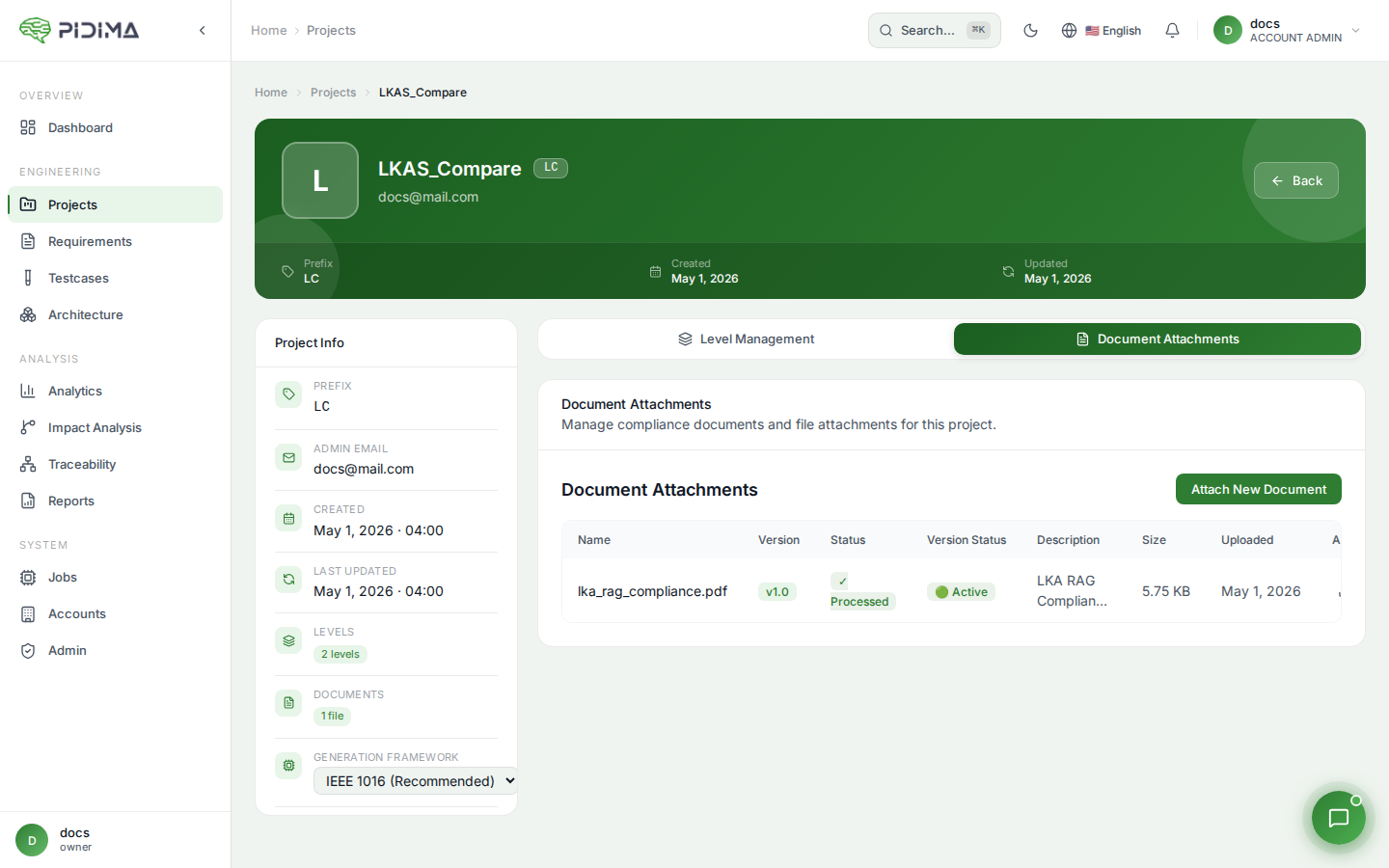
All AI features can leverage uploaded project documentation for enhanced accuracy through intelligent document processing and retrieval.
Overview
Pidima's Document Context Integration uses advanced RAG (Retrieval-Augmented Generation) technology to make AI features more accurate and relevant by grounding them in your actual project documentation.
How It Works
RAG Technology
RAG (Retrieval-Augmented Generation) combines two powerful AI capabilities:
- Retrieval: AI searches through your documents to find relevant information
- Generation: AI uses retrieved context to generate accurate, grounded responses
This approach ensures AI features reference your actual specifications rather than relying solely on general knowledge.
Document Processing
When you upload documents to your project:
- Content Extraction: Text is extracted from PDFs, Word docs, and other formats
- Semantic Chunking: Documents are broken into meaningful sections
- Embedding Creation: AI creates searchable representations of content
- Index Building: Content is organized for fast retrieval
- Version Tracking: Multiple document versions are processed and managed
See Document Versioning & RAG Processing for detailed information.
AI Features Enhanced by Document Context
AI Assistant
the AI Assistant leverages documents to:
- Answer questions about specifications
- Reference specific document sections
- Cite page numbers and clauses
- Compare requirements to documented standards
- Explain technical terms from your documentation
Example:
You: "What voltage specifications does our battery requirement need?"
AI: "According to EV_Battery_Requirements.pdf (v1.1, Section 3.1):
     Nominal voltage: 12.0V ±0.6V (11.4V to 12.6V measured at rest)

     This matches requirement SYSTEM-REQ-00003."
See AI Assistant for complete guide.
Requirements Assist
Document context improves all Requirements Assist operations:
Autofill Missing Fields
- Uses documents to determine appropriate requirement types
- Assigns domains based on specification structure
- Sets priority levels matching documented criticality
Rewrite Requirements
- References specification language and terminology
- Ensures enhanced requirements match documented standards
- Maintains consistency with project documentation
Level Generation
- Derives requirements from source specifications
- Maintains traceability to document sections
- Uses documented decomposition patterns
See Requirements Assist for detailed features.
Generate Tests
Test generation benefits from document context:
- Creates tests matching documented test procedures
- Includes acceptance criteria from specifications
- References standard test methods in documents
- Ensures coverage of documented requirements
See Generate Tests for test generation guidance.
Configuring Document Context
Applied Levels
Control which requirement levels use each document:
- Go to Project → Document Attachments
- Click Edit next to a document version
- Select Applied Levels:
- ✓ Customer Requirements
- ✓ System Requirements
- ✓ Subsystem Requirements
- ✓ Component Requirements
- Save configuration
AI features only use documents relevant to the requirement level you're working on.
Applied Modules
Specify which functional modules reference each document:
- Edit document settings
- Select Applied Modules:
- Software
- Hardware
- Mechanical
- Electrical
- Safety
- Security
- Save configuration
This ensures AI features reference domain-specific documentation.
Monitoring RAG Processing
Track document processing status:
- Processed (Green): Document fully indexed and available
- Processing (Yellow): Document being processed, AI access limited
- Failed (Red): Processing error, document not available
View processing status in the Document Attachments table and enable monitoring for active documents.
Benefits of Document Context
Improved Accuracy
- Domain-Specific: AI understands your industry terminology
- Project-Specific: Responses match your project's standards
- Version-Aware: Uses correct document versions
- Citation-Backed: AI responses reference actual specifications
Enhanced Consistency
- Standardized Language: AI uses terms from your documents
- Uniform Format: Generated content matches documented patterns
- Compliance: Ensures alignment with documented standards
- Traceability: Links AI outputs to source documentation
Time Savings
- Faster Requirement Writing: AI suggests text from specifications
- Reduced Manual Research: AI finds relevant document sections
- Quick Answers: AI Assistant retrieves information instantly
- Automated Cross-Reference: AI links related document sections
Best Practices
Document Preparation
Use Text-Based Documents
- PDF with embedded text (not just scanned images)
- Word documents (.docx)
- Markdown or plain text for best results
- OCR scanned documents before upload if necessary
Structure Documents Clearly
- Use headings and sections consistently
- Number sections and clauses
- Include table of contents
- Break very large documents into logical parts
Keep Documents Current
- Upload latest versions promptly
- Mark obsolete versions as inactive
- Enable monitoring for frequently updated documents
- Document version changes in descriptions
Configuration Strategy
Set Appropriate Scope
- Don't apply documents to all levels if they're level-specific
- Use module filtering to reduce irrelevant context
- Review and update scopes when project structure changes
Monitor Actively Used Documents
- Enable monitoring for specifications in active development
- Disable monitoring for finalized, stable documents
- Set appropriate refresh intervals based on update frequency
Maintain Document Library
- Remove obsolete document versions periodically
- Archive documents for completed project phases
- Keep document descriptions current and descriptive
Using Document Context Effectively
Reference Documents in Prompts
- "According to the battery specification document..."
- "Based on our safety standards document..."
- "Using the test procedure specification..."
Ask Specific Document Questions
- "What does section 3.2 of the battery spec say about CCA ratings?"
- "Find all requirements in the safety standard related to fault handling"
- "Compare this requirement to the documented acceptance criteria"
Validate AI Responses
- Check cited document sections yourself
- Verify page numbers and quotes
- Ensure AI interpretation matches your understanding
- Provide feedback on incorrect references
Document Context in Workflows
Requirements Creation
- Upload project specifications to Document Attachments
- Wait for RAG processing to complete (green "Processed" status)
- Use Requirements Assist to import or enhance requirements
- AI references specifications automatically
- Review and approve AI-generated content
Test Case Development
- Ensure test procedure documents are uploaded and processed
- Select requirements needing test coverage
- Use "Generate Tests" with document context enabled
- AI creates tests matching documented procedures
- Review and customize generated tests
Requirement Review
- Open requirement in detail view
- Ask the AI Assistant: "Does this requirement match our specifications?"
- AI Assistant analyzes requirement against documents
- Review AI feedback and cited sections
- Update requirement based on insights
Compliance Verification
- Upload regulatory standards and compliance documents
- Configure Applied Levels for compliance documents
- Use Requirements Assist to check compliance
- Ask the AI Assistant: "Does this meet ISO 26262 requirements?"
- Review AI analysis and document citations
Async Processing
All AI operations run asynchronously for optimal performance:
- Email Notifications: Receive updates when operations complete
- Progress Tracking: Monitor job status through the Jobs page
- Token Usage: Track AI usage and costs
- Batch Processing: Handle large volumes of requirements efficiently
- Background Processing: Continue working while AI processes documents
Large document processing happens in the background, allowing you to continue working on other tasks.
Troubleshooting
Document Not Being Used by AI
If AI doesn't reference your document:
- Check document status is "Processed" (green)
- Verify Applied Levels and Modules match your work
- Ensure document version is "Active"
- Try asking the AI Assistant specifically about the document
- Check if monitoring is enabled
Incorrect Document References
If AI cites wrong document sections:
- Verify document structure is clear (use headings)
- Check if document OCR quality is good (for scanned PDFs)
- Ensure document content is not corrupted
- Try re-uploading document
- Provide feedback via thumbs down on AI response
Slow AI Responses
If AI features are slow when using documents:
- Reduce number of large documents with "Applied" to all levels
- Be more specific with Applied Levels and Modules
- Break very large documents into smaller files
- Disable monitoring on unused documents
- Contact support for project optimization