Requirement Intelligence
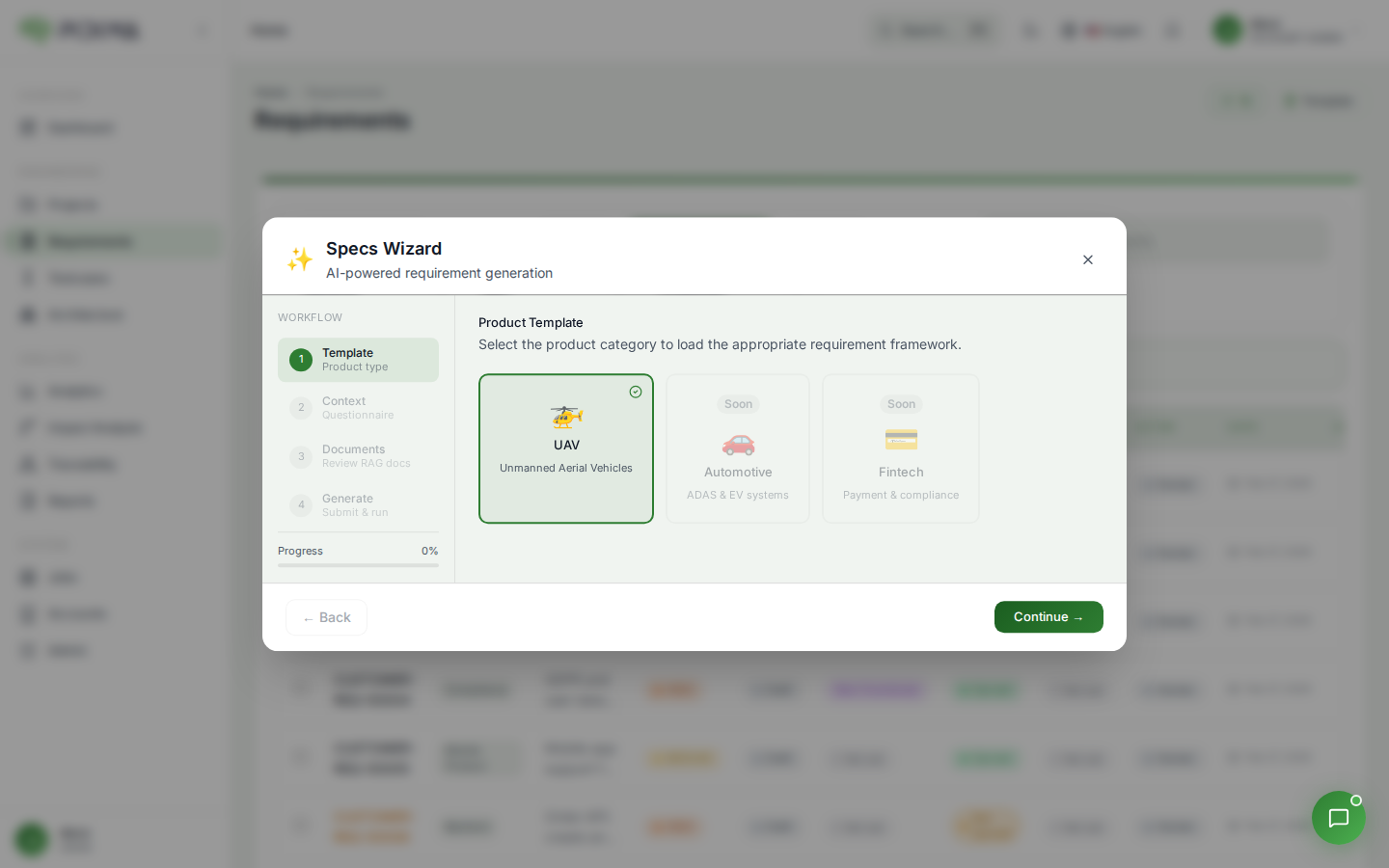
Requirement Intelligence is Pidima's AI-powered requirement generation wizard. It uses your project's uploaded documents — compliance regulations and technical specifications — combined with a guided template questionnaire to automatically generate a complete set of requirements for a project level.
Overview
Instead of manually writing requirements from scratch, Requirement Intelligence:
- Guides you through a template — A step-by-step questionnaire captures your system profile (e.g., product type, operating conditions, safety constraints)
- Retrieves relevant document content — Uses RAG (Retrieval-Augmented Generation) to find applicable clauses from your compliance and specification documents
- Generates requirements with AI — Produces structured requirements with descriptions, types, priorities, domain assignments, assumptions, and full source traceability
- Runs compliance analysis — Automatically triggers a compliance check on the generated requirements against your regulation documents
How It Works
The generation runs as an async job with 6 tracked steps:
Step 1: Preparing Context
Pidima resolves:
- Project details — Name, description, and structure
- Level hierarchy — All project levels and which level is being targeted
- Level domains — Configured domains for the target level (e.g., Safety, Performance, Communication)
- Template context — Your questionnaire answers, either from the current request or previously saved for this project
Template answers are saved per-project, so you can return and regenerate with updated context at any time without re-entering everything.
Step 2: Retrieving Project Documents
Pidima resolves which documents to use:
- Compliance Documents — If you selected specific documents, those are used. Otherwise, all documents in the project are included.
- Specification Documents — If you selected specific documents, those are used. Otherwise, all documents tagged with the REQUIREMENTS module are included.
A document name cache is built for traceability — every generated requirement will reference the exact document and location it was derived from.
Step 3: Retrieving Compliance Content
Your template answers are converted into a natural language query optimized for semantic search. For example, if you answered "Maximum takeoff mass: 25kg" and "Airspace type: Class G", the query becomes:
"Find compliance clauses and technical requirements for the following UAV system profile. Maximum takeoff mass is 25kg; airspace is Class G. Prioritize airworthiness, operational limitations, safety constraints, and verification-oriented requirements."
This query is used to perform hybrid search (semantic + keyword) across your compliance documents, retrieving the top 40 most relevant chunks. Each chunk includes:
- Document name, chapter, section, and page number
- The enriched content text
- A similarity score and match type
Step 4: Retrieving Specification Content
The same natural language query is used to search specification documents, retrieving the top 30 most relevant chunks with a relaxed similarity threshold to capture broader technical context.
Step 5: AI Generation
Pidima sends a comprehensive prompt to the AI model containing:
- Project name, description, and level structure
- The target level name and available domains
- All template answers formatted as Q&A pairs
- Compliance chunks (labeled
[C1],[C2], etc.) - Specification chunks (labeled
[S1],[S2], etc.)
The AI generates a structured JSON response with requirements, each containing:
| Field | Description |
|---|---|
description | The requirement description derived from document content |
type | FUNCTIONAL, NON_FUNCTIONAL, SAFETY, PERFORMANCE, etc. |
priority | LOW, MEDIUM, HIGH, or CRITICAL |
domain | The domain this requirement belongs to (matched against level domains) |
assumptions | List of assumptions the AI identified |
sourceChunkRefs | References to the specific chunks used (e.g., [C1], [S3]) |
sourceDocument | The document name where the source content was found |
sourceSection | The section/chapter reference |
provenance | How the requirement was derived (e.g., "Derived from regulation clause") |
applicabilityJustification | Why this requirement applies to the system profile |
Step 6: Saving Requirements
Each generated requirement is created in the target level with:
- Auto-generated name — Following the project's naming convention (e.g.,
SYSTEM-REQ-00001) - Status — Set to DRAFT for review
- Synced — Set to
true(AI-generated, no external source to sync with) - Actor type — Marked as AI-generated
- Domain assignment — Automatically matched to the closest configured domain using fuzzy name comparison
- Assumptions — Stored as structured RequirementAssumption records with timestamps
- Source document versions — Linked to the specific document versions used, ensuring reproducibility
- Custom attributes — Source chunk references, chunk metadata, provenance, and applicability justification stored for full traceability
Automatic Compliance Check
After all requirements are saved, Pidima automatically triggers a Compliance Intelligence analysis:
- Uses the compliance documents (or specification documents as fallback) as the regulation source
- Analyzes all generated requirements in a single batch
- Results appear on each requirement's detail page in the compliance section
This validates that the generated requirements are consistent with the regulation clauses they were derived from.
Source Traceability
Each generated requirement includes detailed provenance information stored as custom attributes:
Chunk References
- sourceChunkRefs — Formatted references like
[C1], [C3], [S2]showing which document chunks were used - C-prefixed chunks come from compliance documents
- S-prefixed chunks come from specification documents
Chunk Metadata
Each referenced chunk includes:
chunkId— Unique identifier of the document chunkdocumentIdanddocumentVersionId— Links to the exact document versionsourceDocument— Document filenamechapterandsection— Location within the documentpageNumberandchunkIndex— Precise positionscore— Similarity score from the retrievalmatchType— Whether the match was semantic, keyword, or hybrid
This metadata is viewable on the requirement details page and provides a complete audit trail from requirement back to source document.
Domain Assignment
If the target level has configured domains, the AI classifies each requirement into the most appropriate domain. The matching algorithm:
- Exact match — Domain name matches exactly (case-insensitive)
- Partial match — Domain name contains the AI's label or vice versa (e.g., "Safety Systems" matches "Safety")
- No match — Requirement is created without a domain assignment
Template Context Persistence
Template answers are stored per-project in the database. This means:
- You can close the wizard and return later — your answers are preserved
- Re-running the wizard uses your saved answers by default
- You can update answers and regenerate to get refined requirements
- Different users on the same project share the same template context
Best Practices
- Upload documents first — Upload and process your compliance and specification documents before running the wizard. The quality of generated requirements depends directly on document coverage and RAG indexing quality.
- Fill the template thoroughly — More context produces more relevant and specific requirements. Vague answers lead to generic requirements.
- Review generated requirements — AI-generated content should always be validated by domain experts. Check descriptions, types, and priorities.
- Check the compliance results — After generation, review the automatic compliance check results on each requirement to identify any that may need refinement.
- Run Gap Analysis — After generation, run Gap Analysis to assess coverage, traceability, and quality across the full level.
- Configure domains — Set up domains on your target level before running the wizard so requirements are automatically categorized.
- Iterate — Re-run the wizard with updated template context if your system profile changes or if you upload additional documents.
- Check provenance — Use the source chunk references on each requirement to verify the AI's interpretation of the source documents.