Impact Analysis
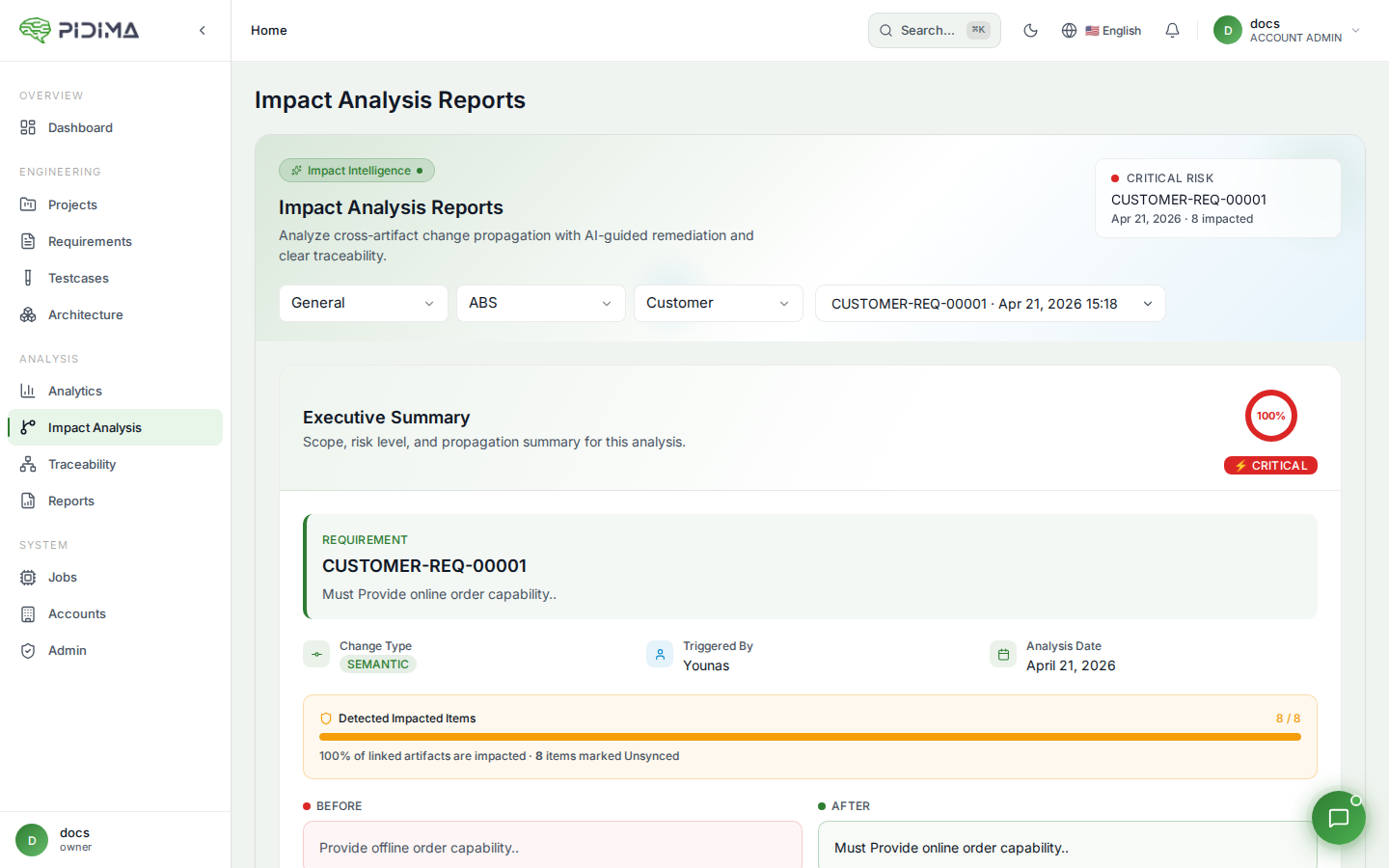
Impact Analysis is Pidima's smart change propagation engine. When a requirement's description changes, Pidima automatically traces the ripple effects across all linked artifacts — child requirements, test cases, and architecture diagrams — using a recursive AI-powered tree traversal.
Overview
When you edit a requirement, Pidima can trigger an impact analysis that:
- Classifies the change — Determines if the edit is cosmetic (grammar, formatting) or functional (thresholds, logic, constraints)
- Traverses the dependency tree — Recursively walks through child requirements, linked test cases, and linked architecture items
- Evaluates impact per artifact — Uses parallel AI calls to assess whether each linked artifact needs updating
- Generates a report — Produces a detailed report with risk levels, AI recommendations, and suggested updates for every impacted artifact
- Marks artifacts as unsynced — Flags impacted requirements, test cases, and architecture items so your team knows what needs review
How It Works
Change Classification
Before running the full analysis, Pidima performs a lightweight AI classification to avoid unnecessary work:
| Change Type | Description | Action |
|---|---|---|
| Non-Impacting | Grammar, punctuation, formatting, typo fixes, shall→should | Skips analysis — report created with zero impacted artifacts |
| Semantic | Thresholds, logic, constraints, behavioral changes | Full recursive tree traversal |
| Structural | Hierarchy or relationship modifications | Full recursive tree traversal |
The classification uses a confidence threshold of ≥80%. If the AI is less than 80% confident the change is non-impacting, it proceeds with the full analysis to be safe. If the classification call itself fails, the system defaults to running the full analysis.
Shortcut rules:
- Identical descriptions → always non-impacting (no AI call needed)
- Empty previous description (new requirement) → always impacting (no AI call needed)
Recursive Tree Traversal
For impacting changes, Pidima launches three parallel AI calls per requirement node:
- Thread 1 — Evaluates impact on child/linked requirements (via DERIVES_FROM links)
- Thread 2 — Evaluates impact on linked test cases (via traceability table)
- Thread 3 — Evaluates impact on linked architecture items (via architecture-requirement links)
For each child requirement identified as impacted by Thread 1, the process recurses — treating that child as a new root and analyzing its own children, test cases, and architecture. This ensures the full downstream impact chain is captured.
Key behaviors:
- Cycle detection — A visited set prevents infinite loops in circular dependency graphs
- Deduplication — If an artifact is already reported as a DIRECT impact, it won't be overridden as INDIRECT by a later recursive pass
- Architecture code compression — PlantUML code is compressed before sending to the AI: comments are removed, notes are stripped, whitespace is collapsed, and code is truncated to 2000 characters to reduce token usage
- Context propagation — For indirect impacts (depth ≥ 1), the AI prompt explains that the requirement was NOT directly modified but an ancestor changed, and asks it to evaluate whether the upstream change affects the linked artifacts
Unsync Propagation
When the analysis completes:
- All impacted requirements are marked as
synced = false - All impacted test cases are marked as
synced = false - All impacted architecture items are marked as
synced = false - The root requirement itself is marked as unsynced only if it has at least one impacted linked artifact
These unsync flags appear as visual indicators throughout the UI (on requirement lists, test case details, architecture pages) so your team can quickly identify what needs review.
Triggering Impact Analysis
Impact analysis can be triggered in several ways:
- Automatically on save — When you edit a requirement's description, Pidima triggers impact analysis as part of the save flow
- From Compliance Intelligence — When applying an AI compliance suggestion, you can opt to run impact analysis on the updated requirement
- From the Impact Analysis page — View all reports for a project and trigger new analyses
- Via API —
POST /api/v1.0/impact-analysis/triggerwith the account ID, project ID, requirement ID, and previous/new descriptions
Impact Analysis Report
Each analysis produces a comprehensive report containing:
Summary
- Change Type — SEMANTIC, STRUCTURAL, or NON_IMPACTING
- Risk Level — LOW, MEDIUM, HIGH, or CRITICAL
- Total Impacted Artifacts — Count of requirements, test cases, and architecture items affected
- Direct vs Indirect Impacts — Direct impacts are first-level linked artifacts; indirect impacts are discovered through recursion
- Triggered By — The user who made the change, with name and timestamp
AI Recommendations
The AI generates three categories of recommendations aggregated from all nodes in the traversal:
- Critical Actions — Must-address items that could cause failures or compliance issues if ignored
- Suggested Updates — Optional improvements the AI recommends for better consistency
- Potential Risks — Risks that may materialize if no action is taken on the impacted artifacts
Impacted Artifacts
Each impacted artifact includes:
| Field | Description |
|---|---|
| Artifact Type | REQUIREMENT, TESTCASE, or ARCHITECTURE |
| Impact Type | DIRECT (first-level linked) or INDIRECT (discovered through recursion) |
| Impact Reason | AI-generated explanation of why this artifact is affected |
| Severity | LOW, MEDIUM, HIGH, or CRITICAL |
| AI Sync Status | UNSYNCED (needs review) or SYNCED (reviewed and updated) |
| Recommended Action | What the AI suggests you do |
| Suggested Description | AI-generated updated description for the artifact |
| Suggested Preconditions | For test cases: updated preconditions list |
| Suggested Steps | For test cases: updated test steps list |
| Suggested Outcomes | For test cases: updated expected outcomes list |
| Suggested PlantUML Code | For architecture items: updated diagram code |
| Linked Requirement | The requirement this artifact is linked to (for context) |
Syncing Impacted Artifacts
After reviewing the impact report, you can sync each artifact individually with one click:
Syncing Requirements
Click Sync on an impacted requirement to:
- Save a revision of the current description (preserving version history)
- Update the description to the AI-suggested version
- Mark the requirement as
synced = true - Mark the impact report artifact entry as synced
Syncing Test Cases
Click Sync on an impacted test case to update:
- Description — Updated to the AI-suggested description
- Preconditions — Replaced with AI-suggested preconditions (if provided)
- Steps — Replaced with AI-suggested steps (if provided)
- Expected Outcomes — Replaced with AI-suggested outcomes (if provided)
- The test case is marked as
synced = truewithactorType = AI
Syncing Architecture
Click Sync on an impacted architecture item to mark the impact report artifact entry as synced. The actual PlantUML code update is handled through the architecture editing interface.
Viewing Impact Reports
Impact reports are accessible from multiple locations:
- Impact Analysis page — Shows all reports for a project, ordered by date. Supports filtering by account and project.
- Requirement detail page — Shows reports triggered by changes to that specific requirement
- Test case detail page — Shows unsynced impact entries where the test case is an impacted artifact
- Architecture detail page — Shows unsynced impact entries where the architecture item is an impacted artifact
Each report view supports paginated artifact lists for large reports.
Risk Level Calculation
| Condition | Risk Level |
|---|---|
| ≥5 direct impacts or >70% of all artifacts impacted | CRITICAL |
| ≥3 direct impacts or >50% of all artifacts impacted | HIGH |
| Any impacted artifacts | MEDIUM |
| No impacted artifacts | LOW |
Token Usage Tracking
Impact analysis tracks AI token usage across all LLM calls (classification + all parallel threads across the entire tree). Token counts are stored on the async job and visible on the Jobs page, including:
- Prompt tokens
- Completion tokens
- Cache creation and read tokens
- Estimated cost
Best Practices
- Review impact reports promptly — unsynced artifacts indicate potential inconsistencies in your project
- Use the AI-suggested descriptions as a starting point, then refine manually for domain-specific accuracy
- For high-risk changes (CRITICAL or HIGH), review all indirect impacts to ensure downstream consistency
- Pay attention to architecture impacts — diagram changes may require manual PlantUML editing
- Run Gap Analysis after syncing multiple artifacts to verify overall project health
- For large dependency trees, expect the analysis to take 1-2 minutes due to recursive LLM calls
- Non-impacting changes (grammar fixes, formatting) complete instantly without consuming AI tokens